Your Apple TV Just Got a Simple Yet Useful New Ability

It’s one of several new features that Apple recently rolled out via the latest software update.

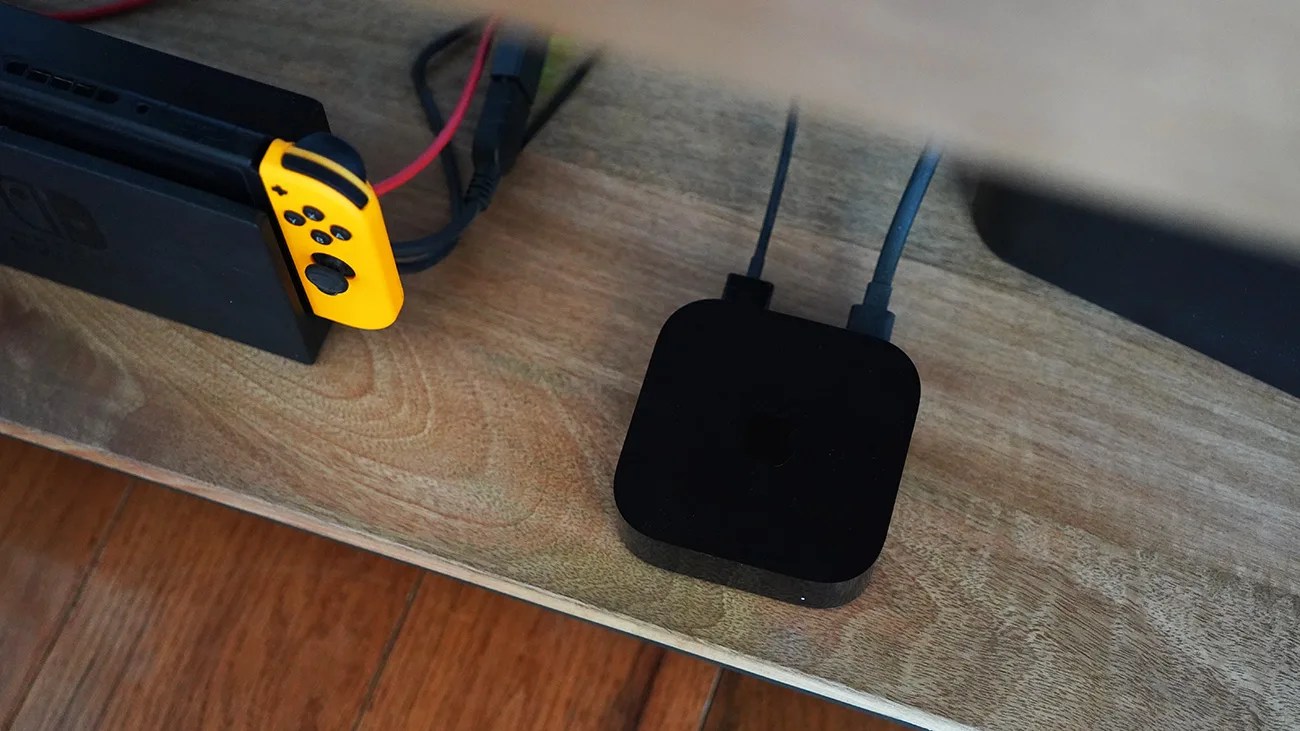
Black Apple TV device with two cables connected, placed on a wooden surface next to a Nintendo Switch dock with a yellow Joy-Con.Photo by Tucker Bowe for Gear Patrol

In the last week (or so), Apple rolled out a small but important software update to your current Apple TV.

With tvOS 26.4, your Apple TV gained a few new features. The standout is called Continuous Audio Connection, a setting that fixes a common audio issue for Sonos soundbar users.

But the software also introduced a new way to customize subtitles.

Quick access, customized subtitles
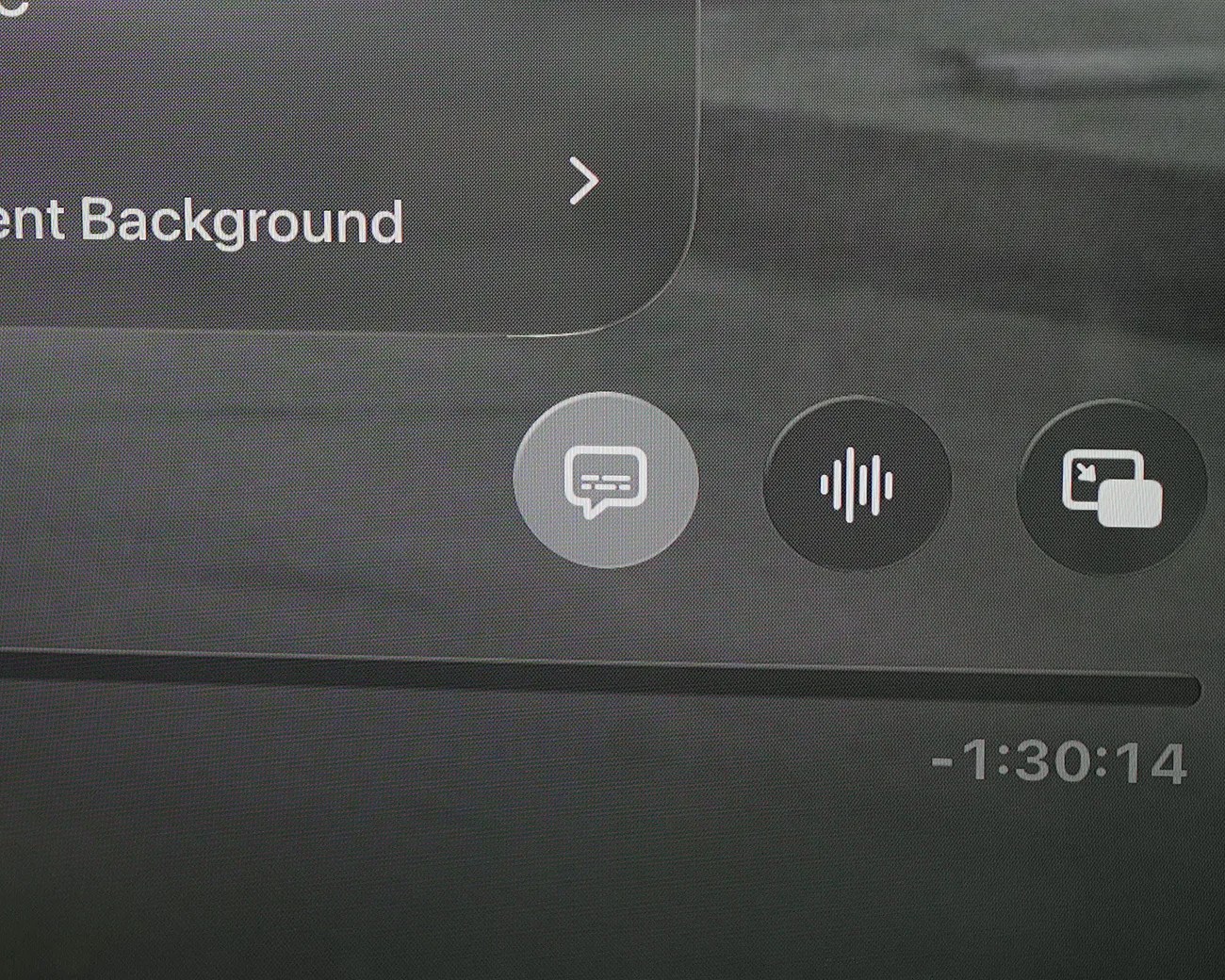
Video player interface showing closed caption, audio, and picture-in-picture icons above a progress bar with 1:30:14 remaining time.
The “Add subtitles” speech bubble just gained a few new controls.
Photo by Tucker Bowe for Gear Patrol

That’s right, if you’re somebody who usually plays movies and shows with subtitles turned on (or if you frequently rewind content, in which case subtitles appear for the next 10 seconds to help you catch up on missed dialogue), then this will be of particular interest.

When playing a movie or show, and you select the speech bubble button to turn subtitles on, you the option to customize how those subtitles appear. No going in the Settings app required.
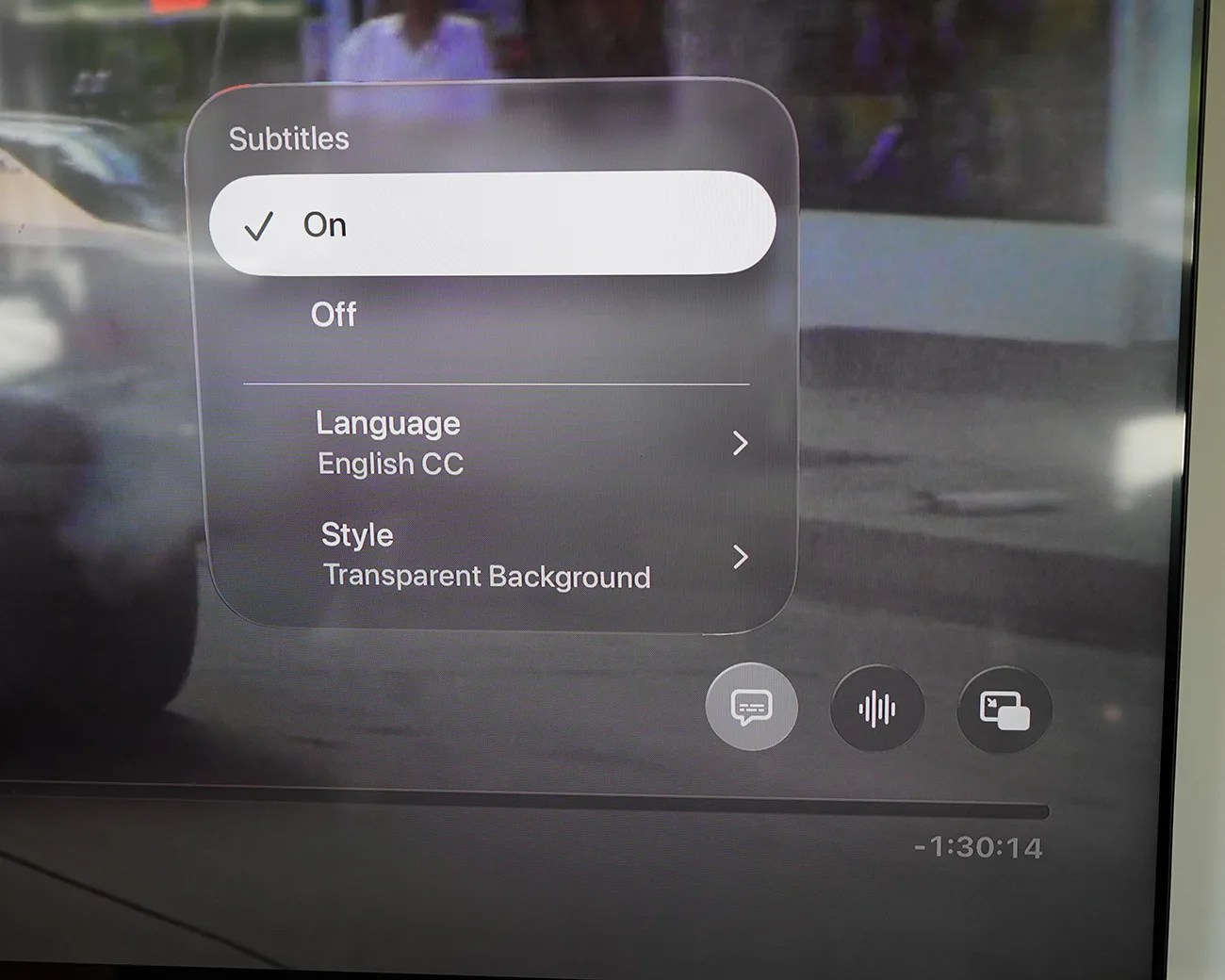
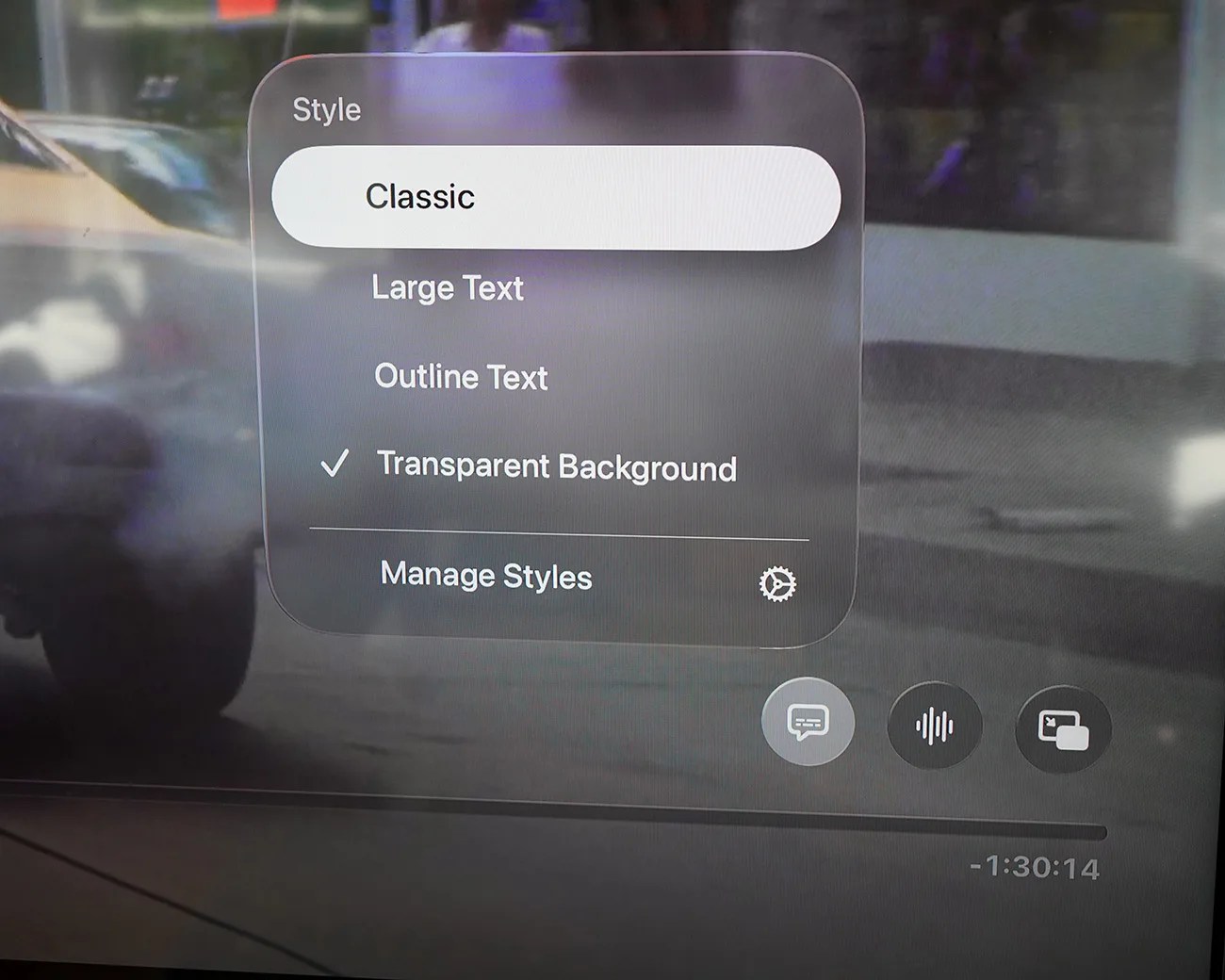
Specifically, you can change the size of the text, as well as whether the subtitles appear with an outline or transparent background. And you can do this right from the playback controls.

Previously, to do this, you had to go to Settings > Accessibility> Subtitles and Captioning.

Additionally, if you want to further customize the look of the subtitles, you can select the Manage Styles option and pick the font style, size, and color, as well as the background’s color and opacity. Once saved, that style will be selectable right from the Subtitles menu.

TV screen showing subtitles menu with options On, Off, Language English CC, and Style Transparent Background.
From the speech bubble, you can now quickly customize the look of your subtitles.
Photo by Tucker Bowe for Gear Patrol
On-screen menu showing text style options with "Classic" selected and "Transparent Background" checked.
For more advanced subtitle customization, select “Manage Styles” and create a custom style.
Photo by Tucker Bowe for Gear Patrol

But wait, there’s a catch.

These quick-access subtitle controls only work while watching content in the Apple TV app and in other apps that use the Apple TV’s default video player.

So, if you’re playing Netflix or HBO Max on Apple TV, you won’t be able to change these subtitle settings right on the fly. But you can still go through the Settings app. Also, if you create a customized subtitle style once, it will stay consistent throughout all apps. Unless you change it again.

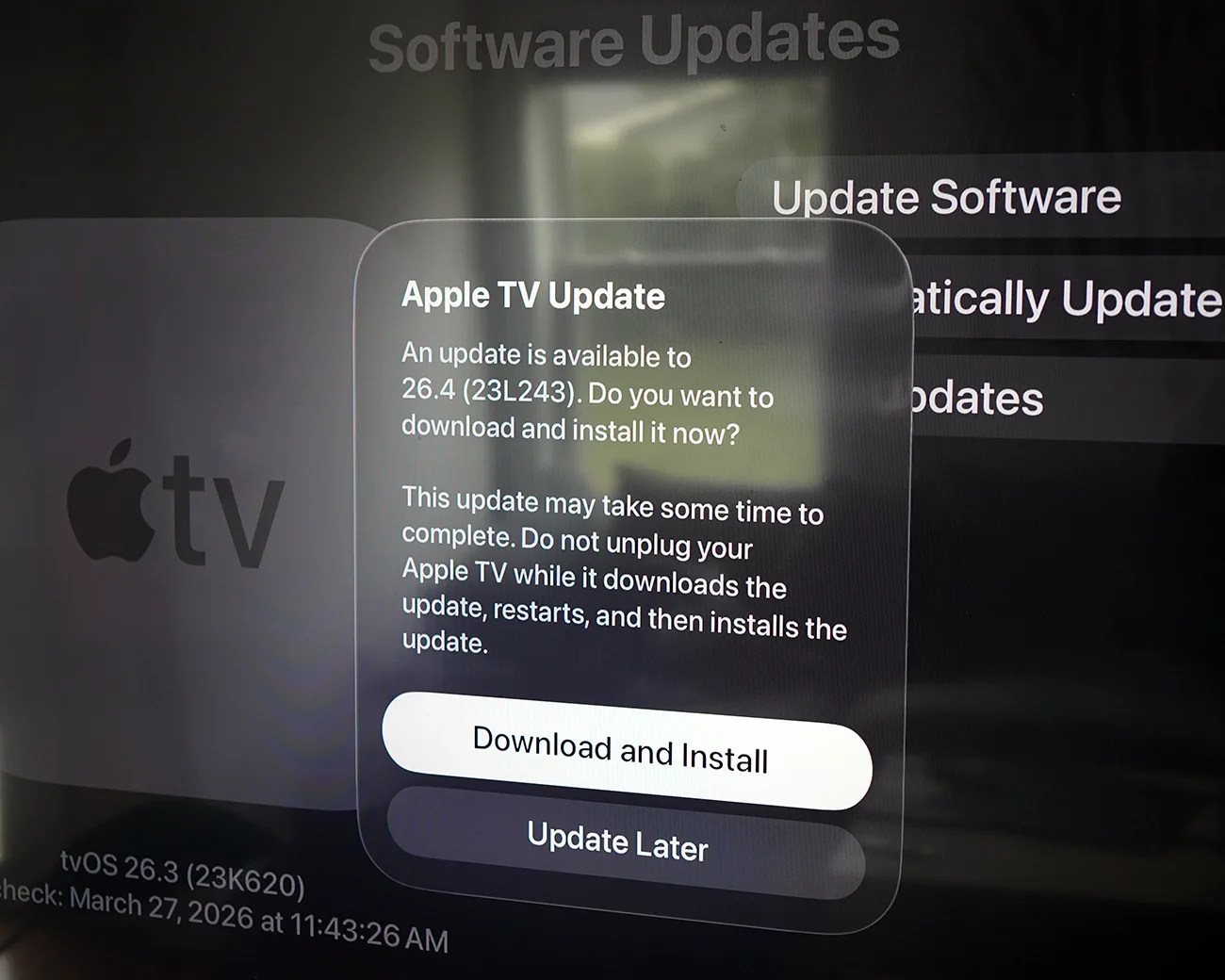
In order to access these new subtitle settings, your Apple TV must be running tvOS 26.4.

Apple TV update prompt on screen offering to download and install tvOS 26.4 or update later.
If your Apple TV hasn’t been updated, you can manually update its software in the Settings app.
Photo by Tucker Bowe for Gear Patrol

Want to stay up to date on the latest product news and releases? Add Gear Patrol as a preferred source to ensure our independent journalism makes it to the top of your Google search results.

add as a preferred source on google