
Apple Quietly Gave Your iPhone a Cool New Ability

It comes with the newest software update, which just rolled out.

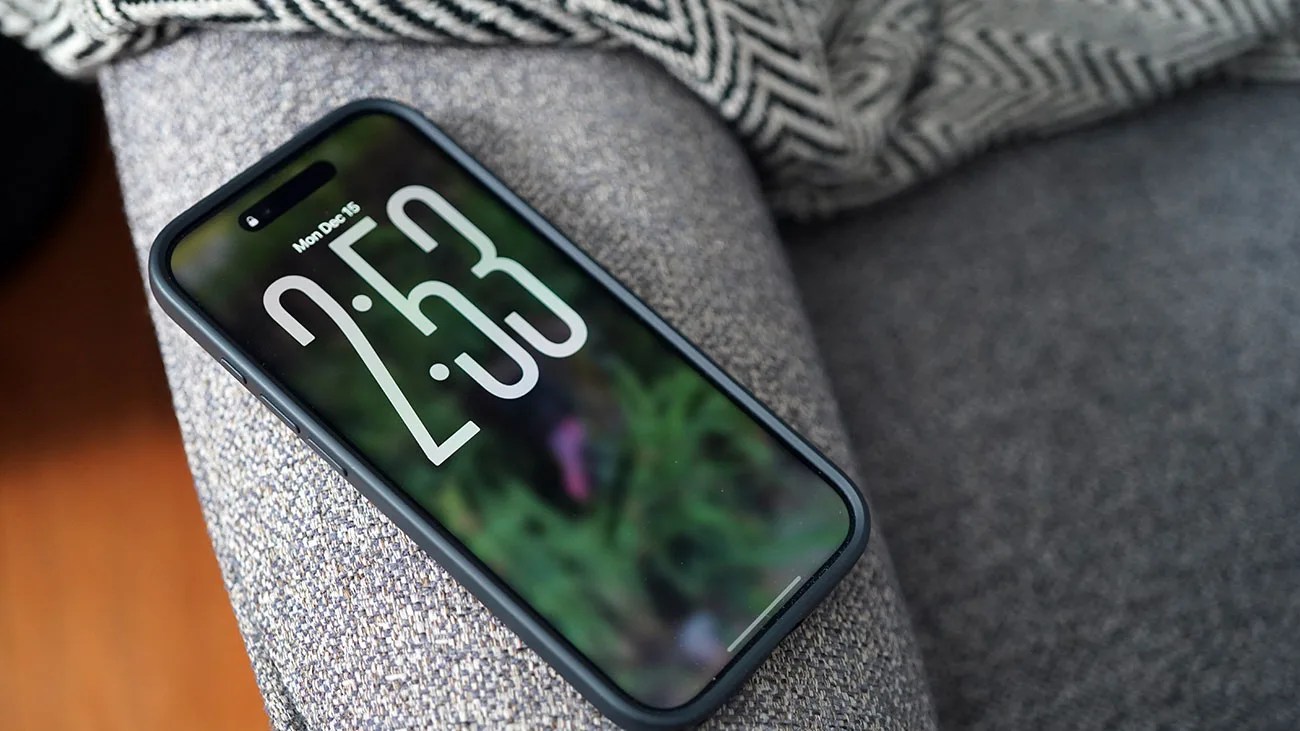
Smartphone with a black case displaying the time 2:53 on a gray fabric surface.Photo by Tucker Bowe for Gear Patrol

Apple recently released iOS 26.2, which introduces several new abilities to your current iPhone.

Admittedly, the description for the updated firmware is vague. Apple explains that it “includes enhancements to Apple Music, Podcasts, and Games, as well as other features, bug fixes, and security updates for your iPhone.”

But there’s quite a bit more going on here. Notably, the firmware gives you more freedom to tweak and customize Liquid Glass settings, as well as adds alarms to the Reminders app.

There’s also a new Accessibility setting that makes it easier to tell when you’ve received a notification.
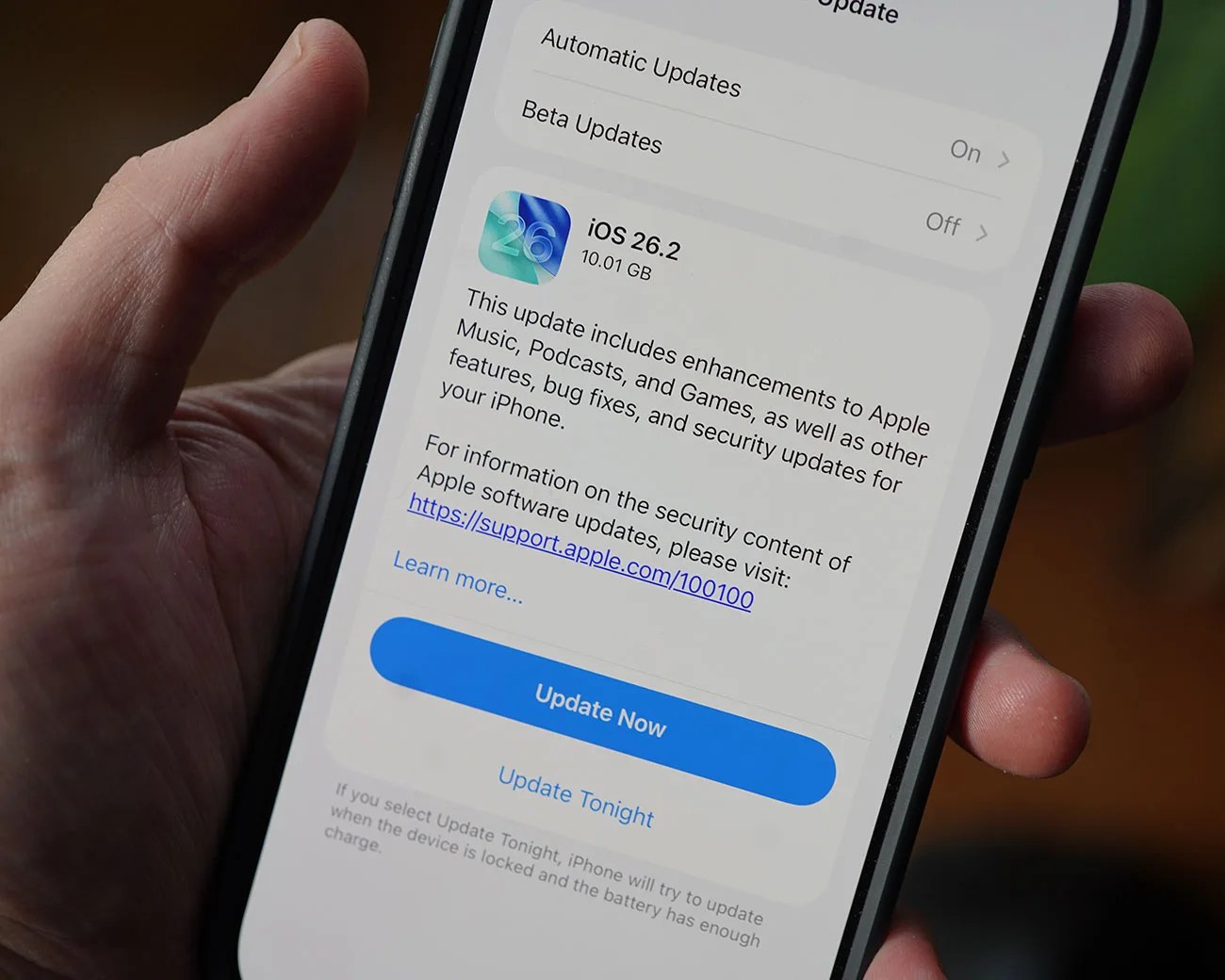
Smartphone screen showing iOS 26.2 update details with an "Update Now" button in a hand.
iOS 26.2 is out now.
Photo by Tucker Bowe for Gear Patrol

Flash for Alerts, expanded

You probably didn’t know it, but your iPhone has long had an Accessibility setting called “Flash for Alerts” buried in the Settings app. When enabled, the rear camera’s flash turns on when you receive a notification.

With iOS 26.2, Apple has added a new option within Flash for Alerts that lets your iPhone’s front screen flash as well, giving you more ways to know when you’ve received a notification.
To enable:

  1. Open the Settings app on your iPhone.
  2. Select Accessibility (beneath General).
  3. Select Audio & Visual (in the Hearing section).
  4. Scroll to the bottom and select Flash for Alerts.
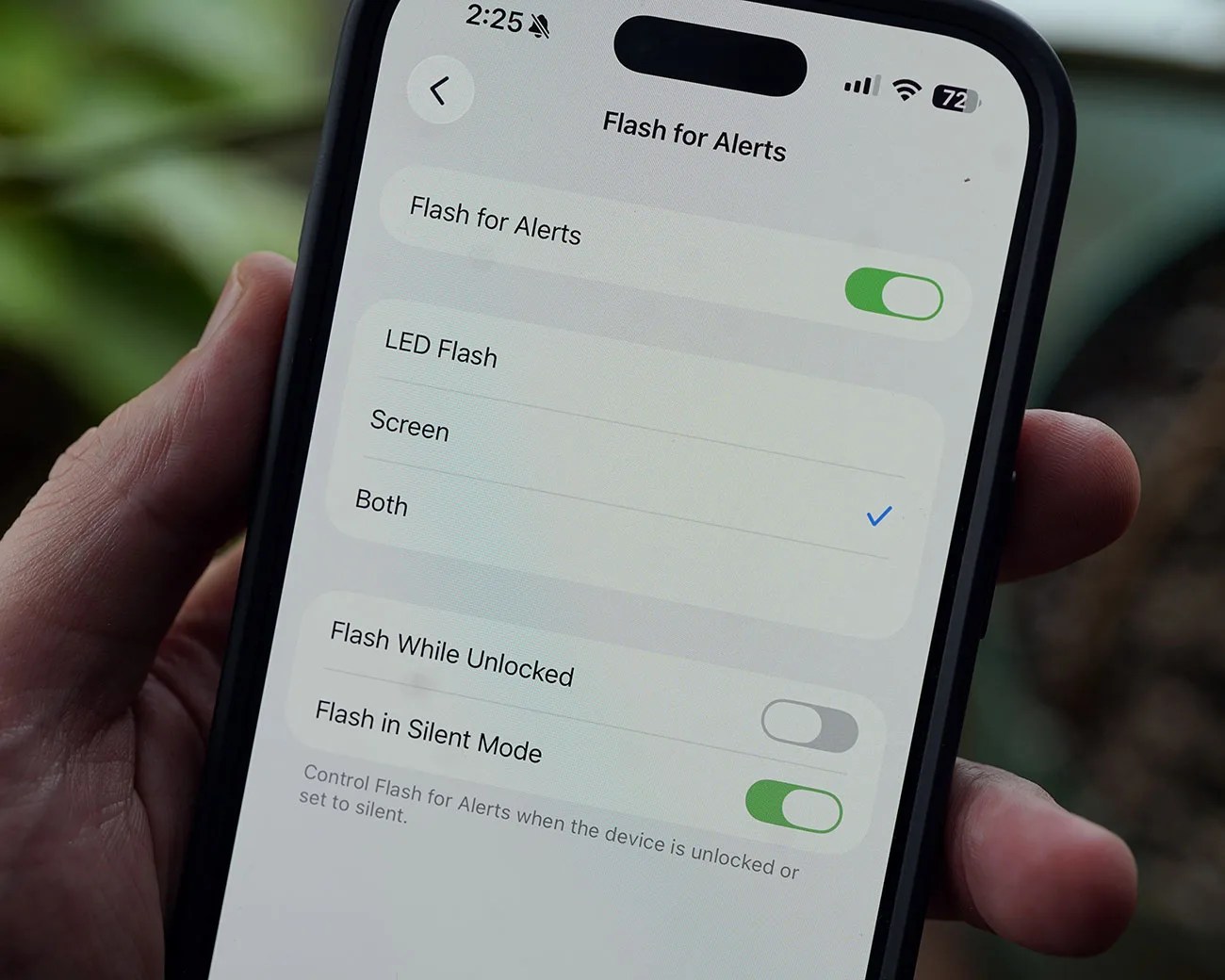
  5. Toggle Flash for Alerts on, and select the new Screen option.
Smartphone screen showing "Flash for Alerts" settings with LED Flash and Screen both selected, and Flash in Silent Mode enabled.
You can find the Flash for Alerts option via the Accessibility section in the Settings app.
Photo by Tucker Bowe for Gear Patrol

Once here, simply toggle on Flash for Alerts and select the new Screen option. Or you can select Both, in which case your iPhone’s rear camera flash and front display will light up when a notification arrives.

Want to stay up to date on the latest product news and releases? Add Gear Patrol as a preferred source to ensure our independent journalism makes it to the top of your Google search results.

add as a preferred source on google