
Your iPhone Is Getting a Simple and Yet Fun New Feature

It’s a small change to one of the things you check most on your iPhone.

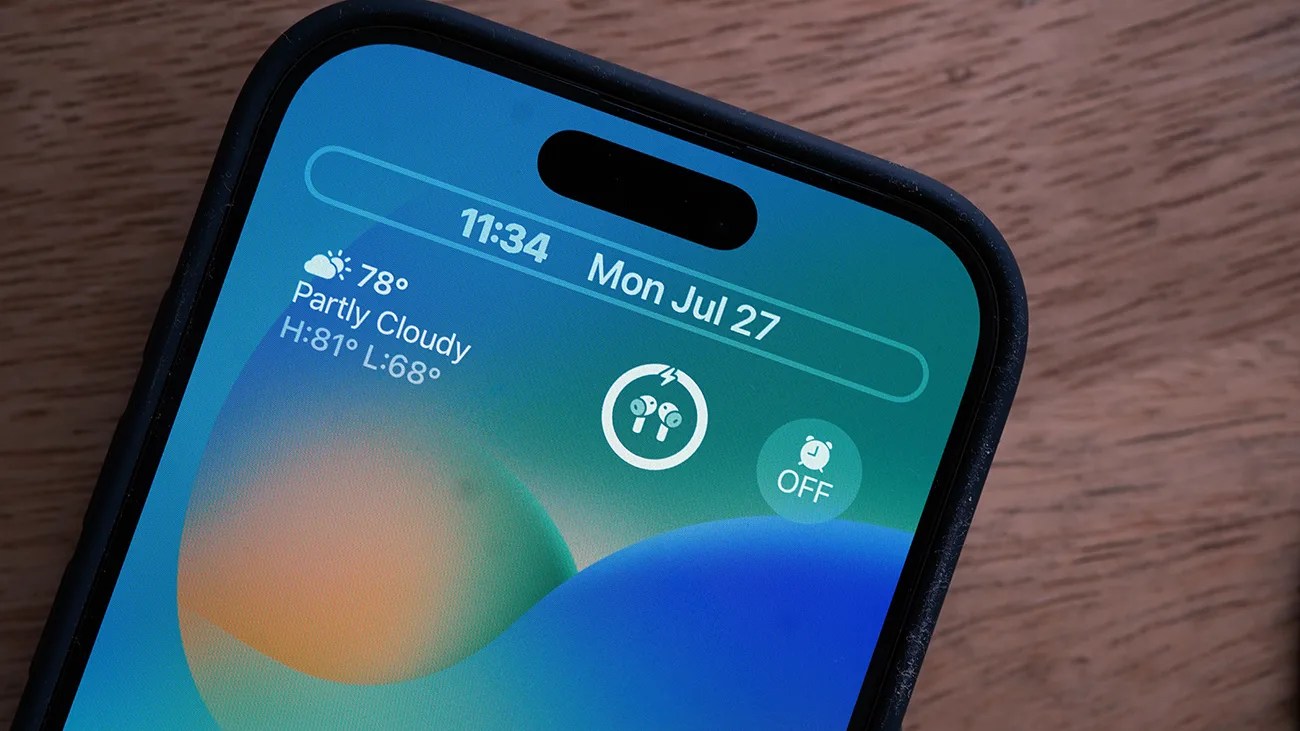
Smartphone screen showing weather widget with 78°F and partly cloudy, date Mon Jul 27, and time 11:34.Photo by Tucker Bowe for Gear Patrol

When iOS 27 drops this coming September, the software update will bring some significant changes and new features to your current iPhone.

Some standouts include a way more capable Siri, some advanced AI photo editing tools, a 3-band equalizer for your AirPods, and the ability to individually set volume levels for alarms and notifications.

Additionally, iOS 27 will introduce some new ways to customize your iPhone’s Lock Screen. One of those is that you’ll finally be able to shrink the clock’s size.

The clock takes up a lot of real estate on your iPhone’s Lock Screen. To date, you’ve been able to tweak the font and color of the clock, as well as make it solid or semi-transparent (thanks to Liquid Glass). But you haven’t been able to make the size of the clock smaller.

That’s now changing.

Shrink the clock
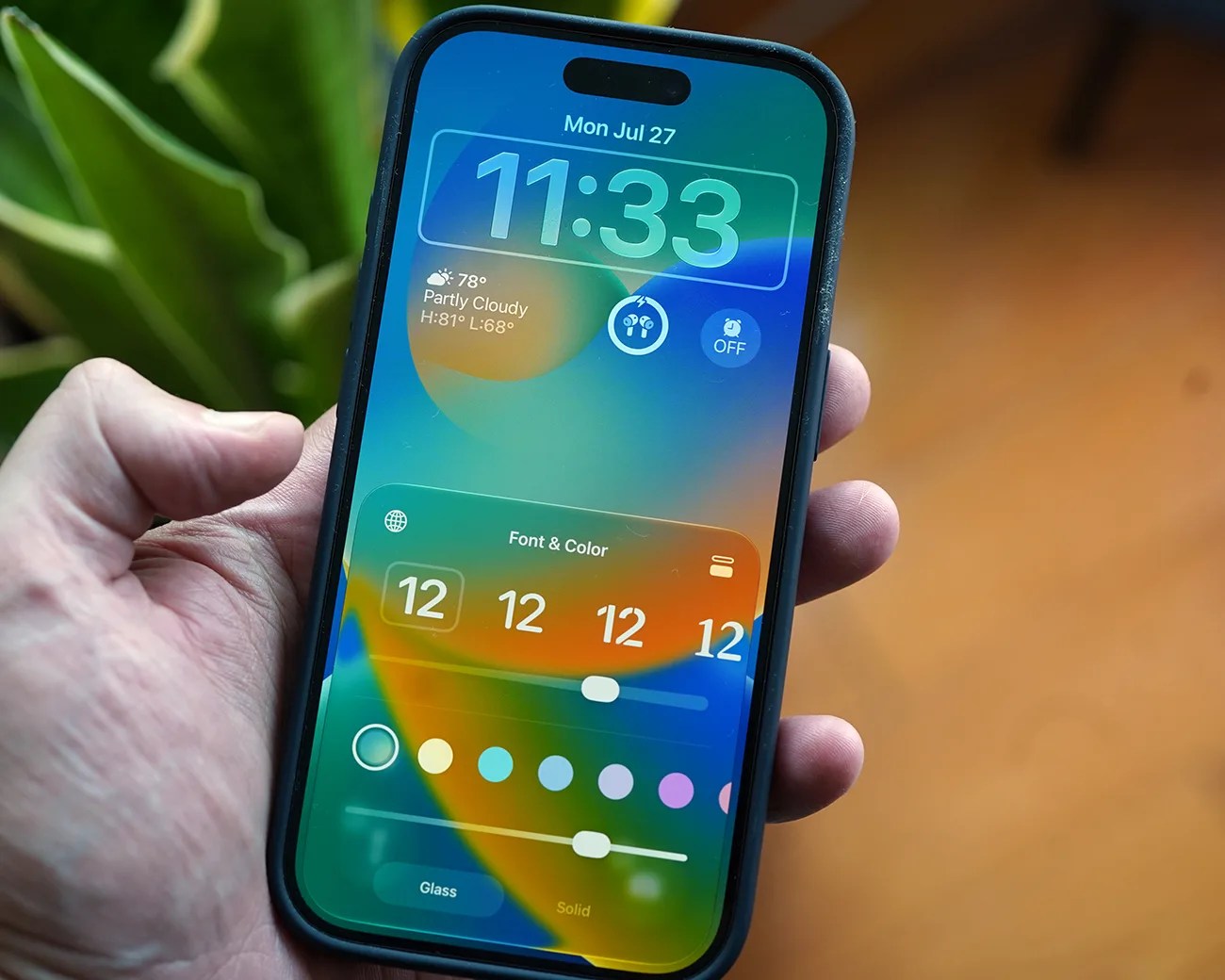
Smartphone with a colorful lock screen showing time, date, weather, and font & color customization options held in a hand.
There’s a new icon when editing the clock on your Lock Screen. It’s the two horizontal bars located in the top-right.
Photo by Tucker Bowe for Gear Patrol

With iOS 27, Apple is adding a new option that lets you drastically shrink the size of the clock on your iPhone’s Lock Screen so that it’s the same size as the date (which has appeared directly above it).
The benefit of this new “tiny clock” is simple: it frees more real estate on your Lock Screen to better show off your wallpaper. If you have a photo of a pet or loved one, or just a really beautiful photo, you now longer have to have it muddied by a massive clock.

To shrink the size of the clock is easy.

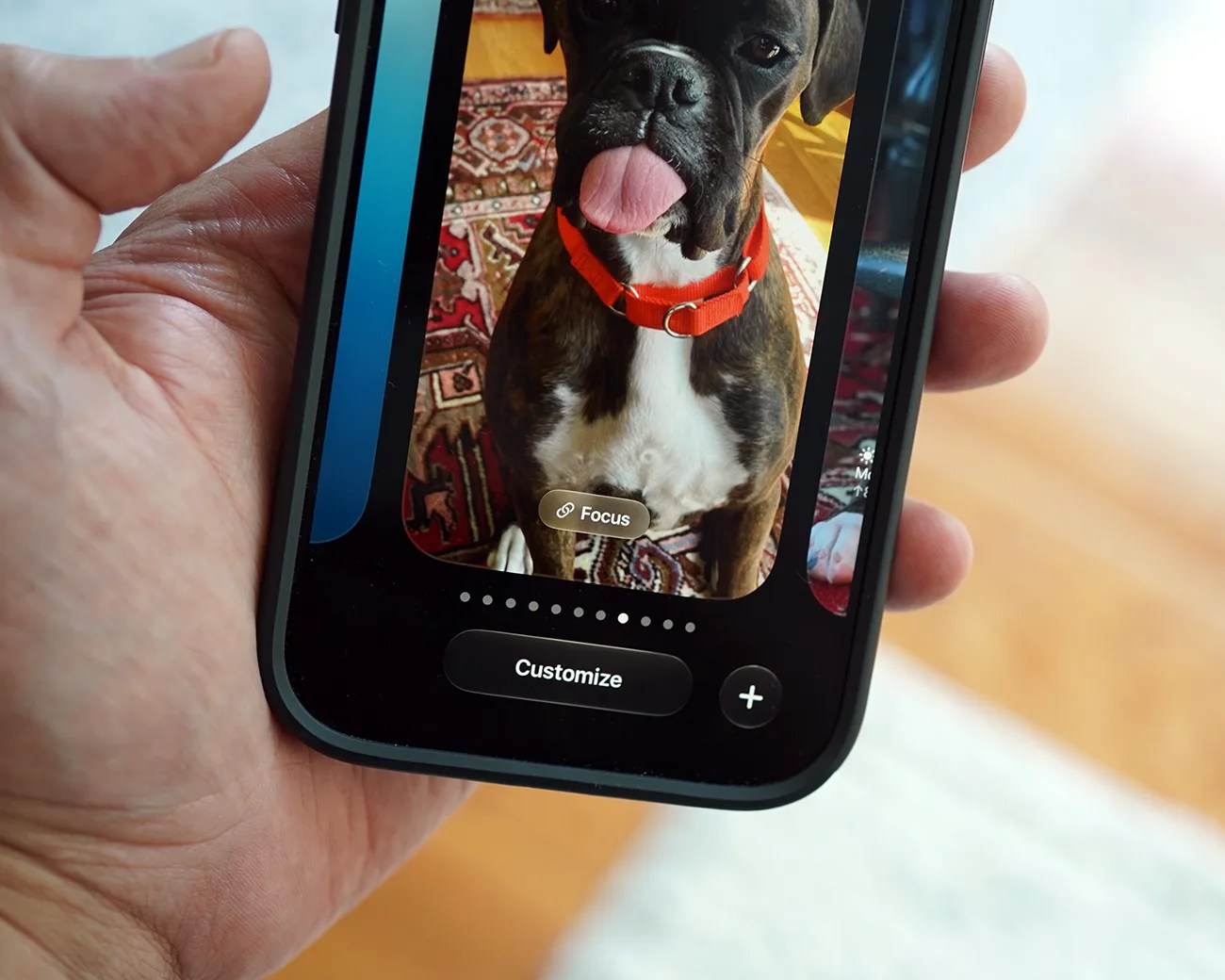
  1. Unlock your iPhone and long press on the Lock Screen.
  2. Tap the Customize button when it appears.
  3. Tap the clock widget.
Hand holding a smartphone displaying a photo of a brindle dog with a red collar sticking its tongue out.
Like before, you can customize the Lock Screen by long-pressing it and hitting the Customize button.
Photo by Tucker Bowe for Gear Patrol
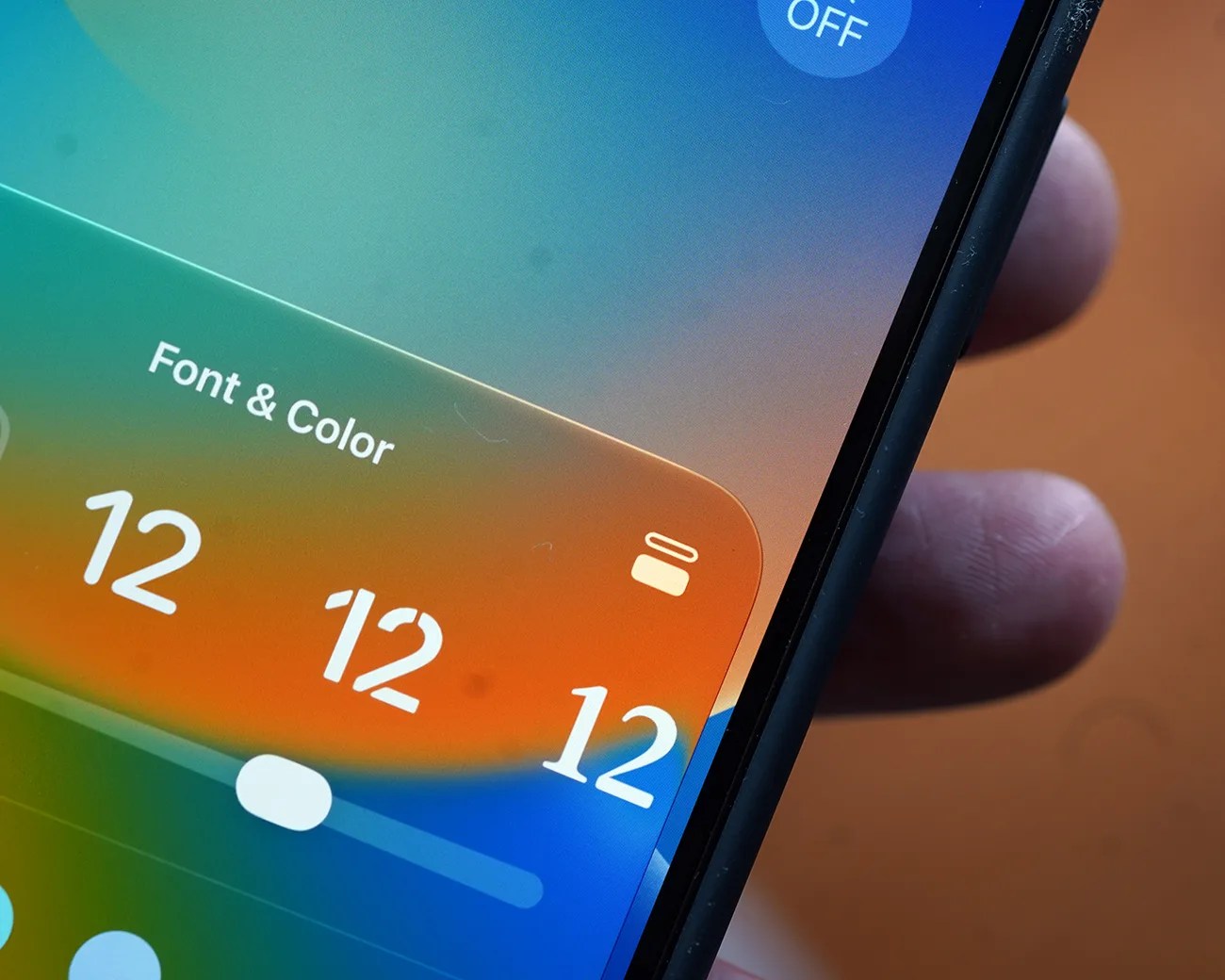
Close-up of a smartphone screen showing a font and color size adjustment slider set to 12.
After tapping the clock, you’ll see this familiar window. But there’s a new icon in the top-right that lets you shrink the size of the clock.
Photo by Tucker Bowe for Gear Patrol

From here, you’ll see the same customization menu as before. You can tweak the font, color and transparency of the clock. But Apple has added a new icon in the top-right corner that toggles the size of the clock between big and small.

Tap the new clock size icon. Tap the center of the wallpaper and then select the “Done” button when it appears in the top-right corner. Your clock will now stay small and live next to (instead of below) the date.

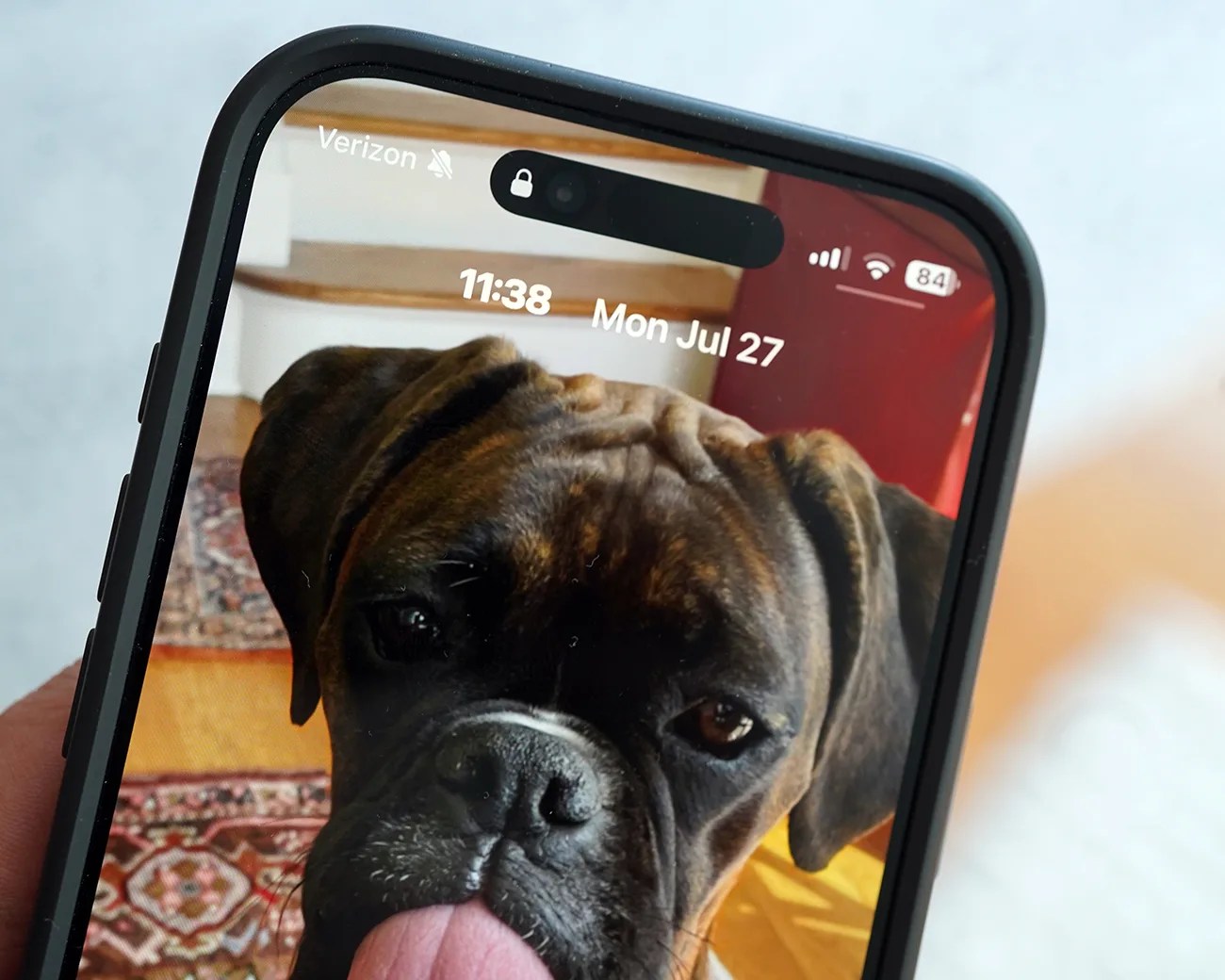
Close-up of a smartphone screen showing a brindle dog with its tongue out as the wallpaper.
Instead of a massive clock, it’s now the same size as the date.
Photo by Tucker Bowe for Gear Patrol
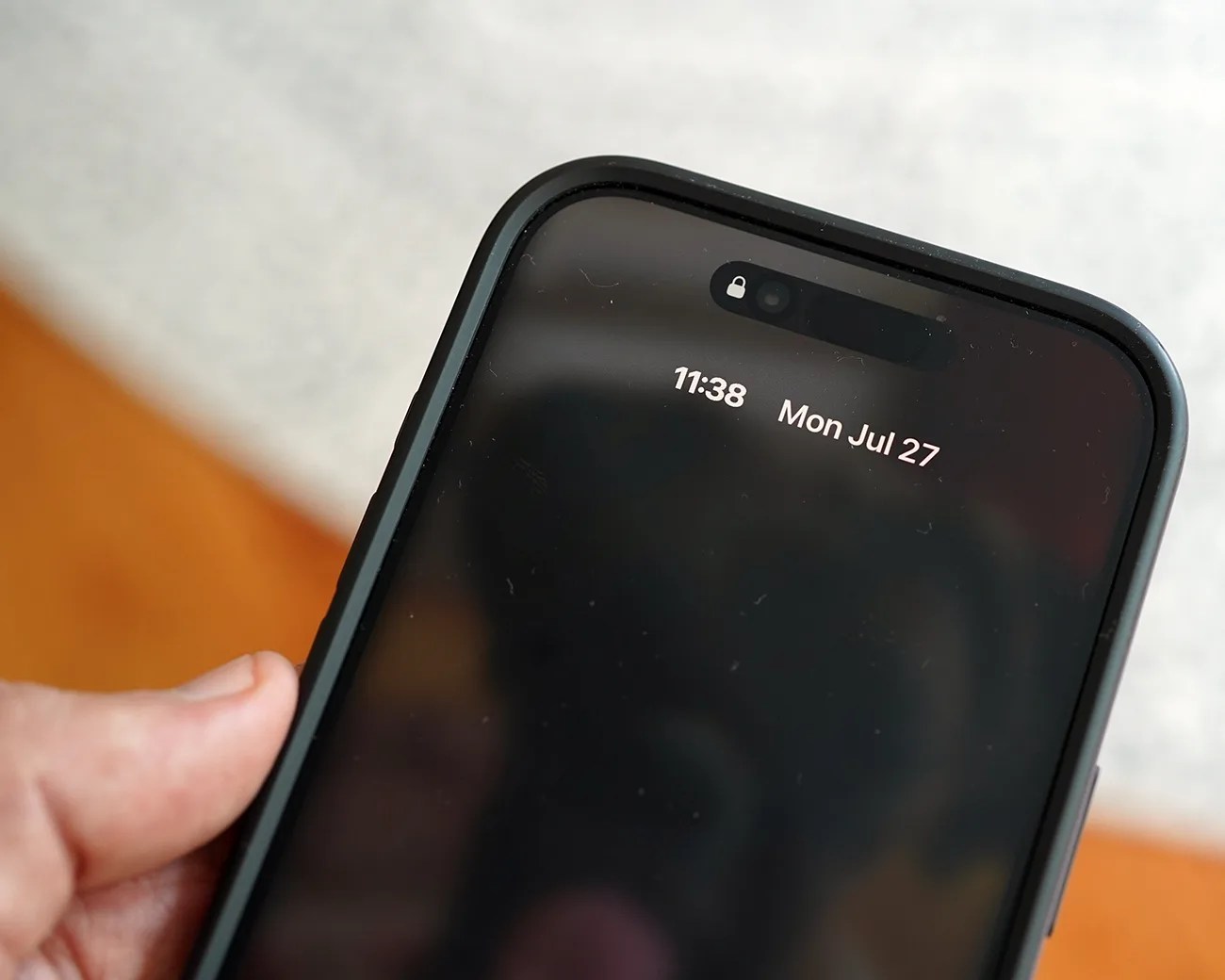
Black smartphone with a dark screen showing the time 11:38 and date Mon Jul 27, held in a hand.
The smaller clock as it appears on your iPhone’s always-on display.
Photo by Tucker Bowe for Gear Patrol

It’s a simple change, but one that many iPhone users will take advantage of. Unfortunately, you can only switch between the two (tiny or large) sizes.

iOS 27 is available now in public beta for early adopters. The official release of the software will roll out after Apple unveils the next batch of iPhones this coming September.

Want to stay up to date on the latest product news and releases? Add Gear Patrol as a preferred source to ensure our independent journalism makes it to the top of your Google search results.

add as a preferred source on google
, ,