
Your iPhone Has a Hidden Feature You Probably Didn’t Know About

It’s best when paired with Apple’s AirPods.

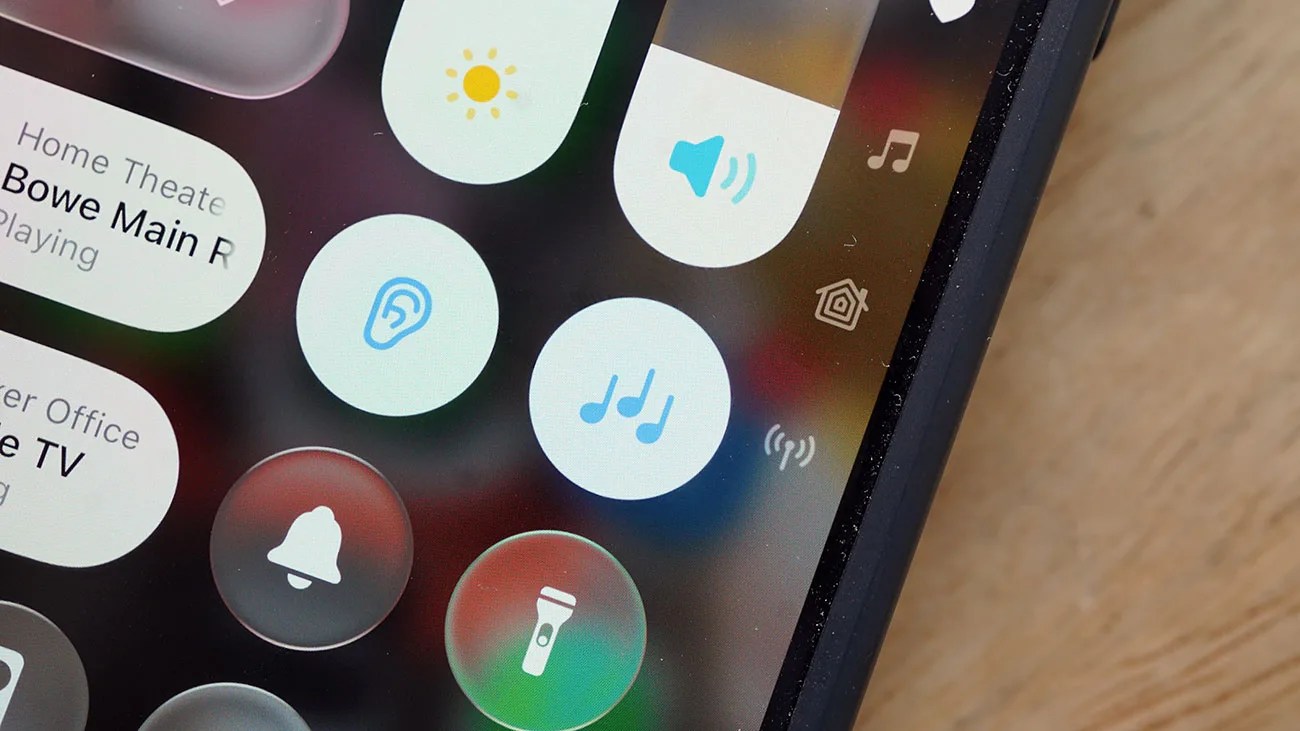
Close-up of a smartphone screen showing music and sound control icons on a dark background.Photo by Tucker Bowe for Gear Patrol

You know this. Apple consistently releases firmware updates for its existing products, improving them over time, fixing bugs, and adding new features throughout the product’s lifecycle.

Admittedly, because the firmware updates happen so frequently, seemingly every month or so, a lot of times Apple introduces new features that get overlooked or lost in newscycle.

Background Sounds is one of those.

Quick access, ambient sounds
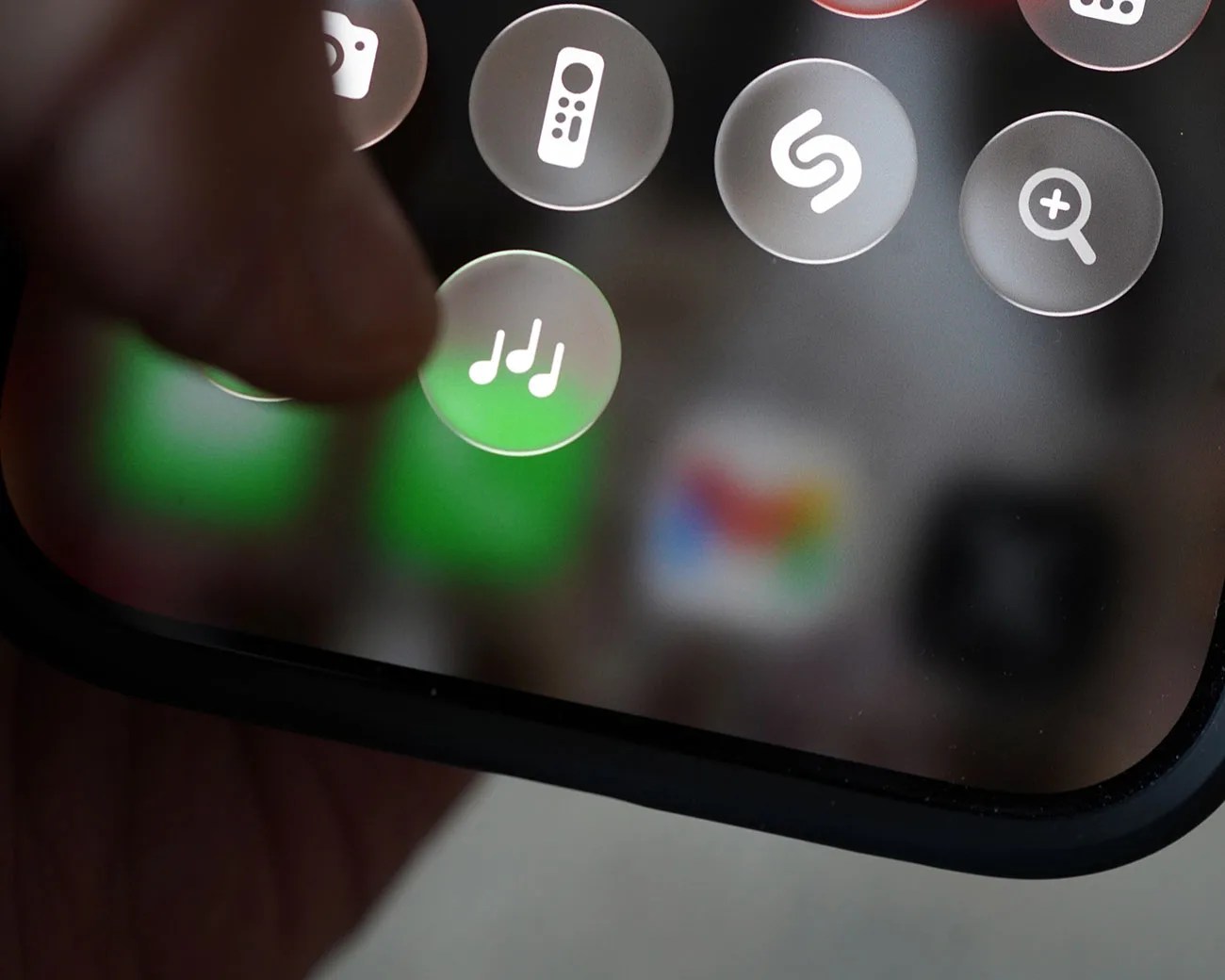
Close-up of a hand holding a smartphone with a music note app icon on the screen.
Background Sounds can be accessed via your iPhone’s Control Center.
Photo by Tucker Bowe for Gear Patrol

Apple introduced Background Sounds as an iPhone feature with iOS 15, which was released in 2021. It’s an accessibility tool that plays environmental sounds to block ambient noise, helping listeners concentrate or rest.

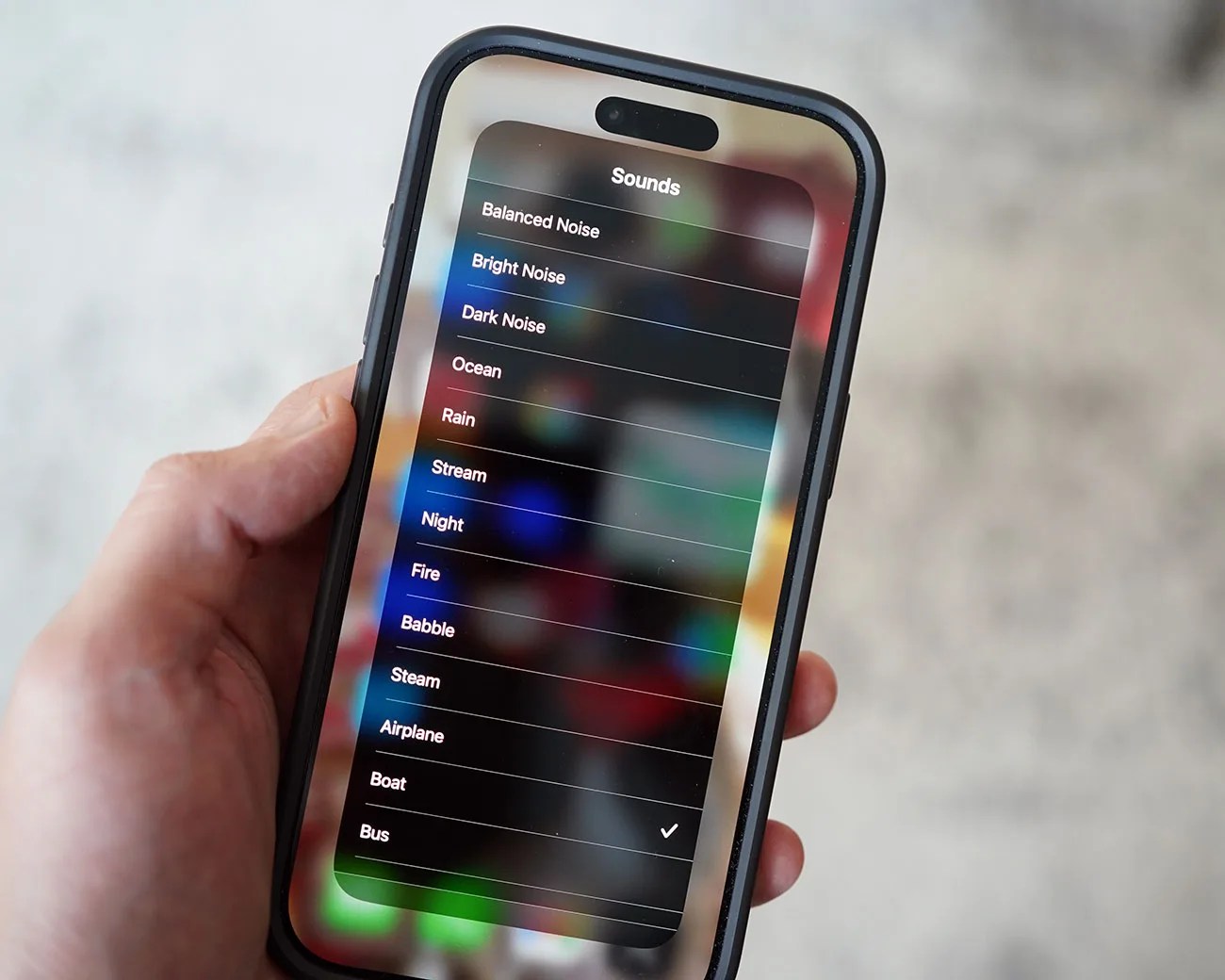
At launch, there were only a few Background Sounds available, including several white noises as well as sounds of the ocean, rain or stream. But over the last year, and thanks in large part to iOS 26, Apple has added quite a bit more — as of my last count, there are 16 different sounds to choose from.
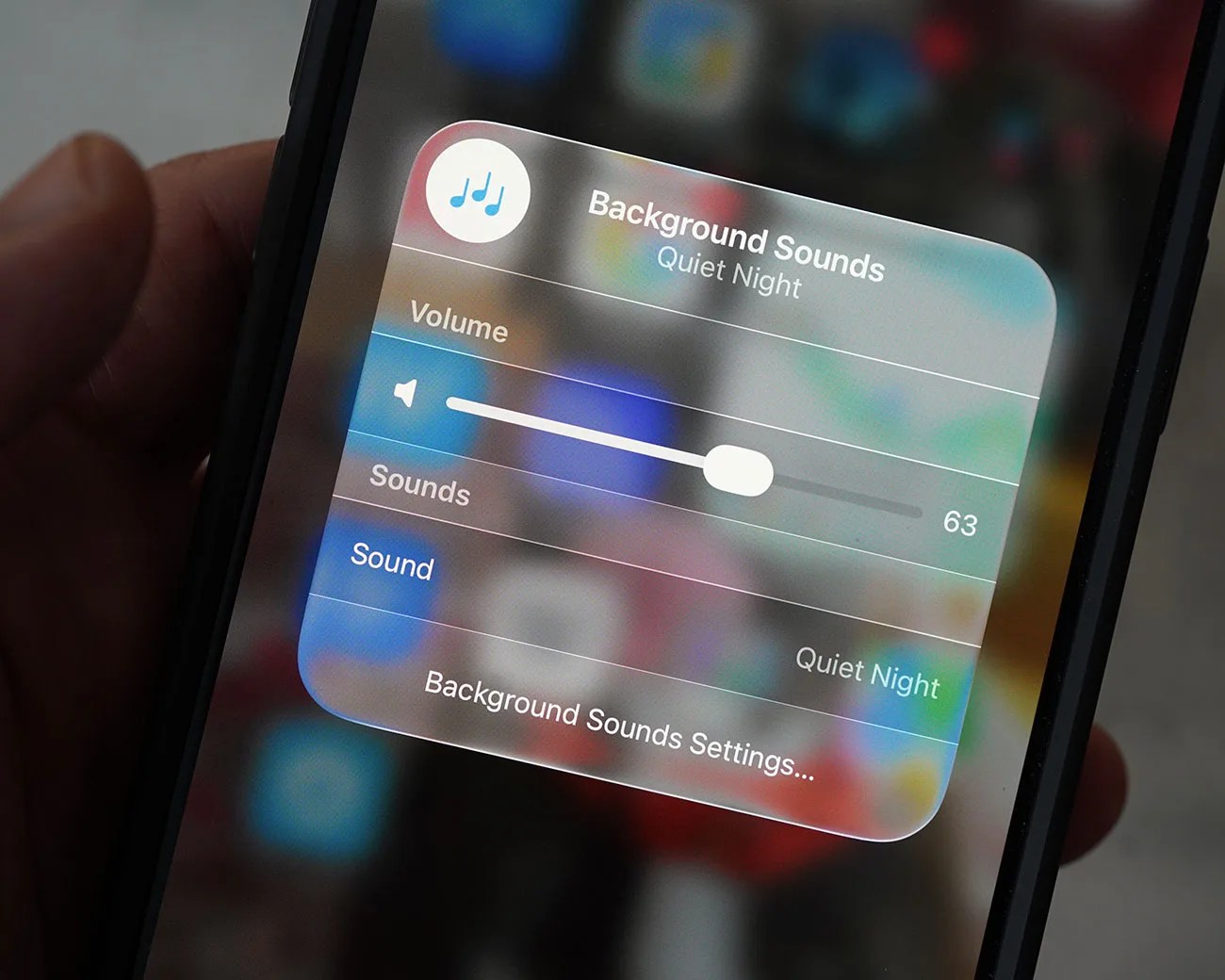
To play a Background Sound is easy:

  1. Swipe down on your iPhone to access the Control Center.
  2. Long-press the Background Sounds icon.
  3. Select the sound and volume you wish to play.
Smartphone screen showing Background Sounds feature set to "Quiet Night" with volume slider at 63.
A long-press on the icon allows you to select the sound and volume levels.
Photo by Tucker Bowe for Gear Patrol

If you open your Control Center and you don’t see the Background Sounds icon, you just have to add it.

  1. From the Control Center, select the “+” icon in the top-left corner.
  2. Select Add a Control.
  3. Select Background Sounds to add it to your Control Center. (If you don’t see it, simply use the search tool.)
Smartphone screen showing a list of ambient sound options with "Bus" selected, held in a hand.
With iOS 26, there are now 16 different Background Sounds to choose from.
Photo by Tucker Bowe for Gear Patrol

For me, I like pop in my AirPods and listen to these Background Sounds when commuting to work or trying to rest … basically any time when I don’t feel like listening to music or a podcast.

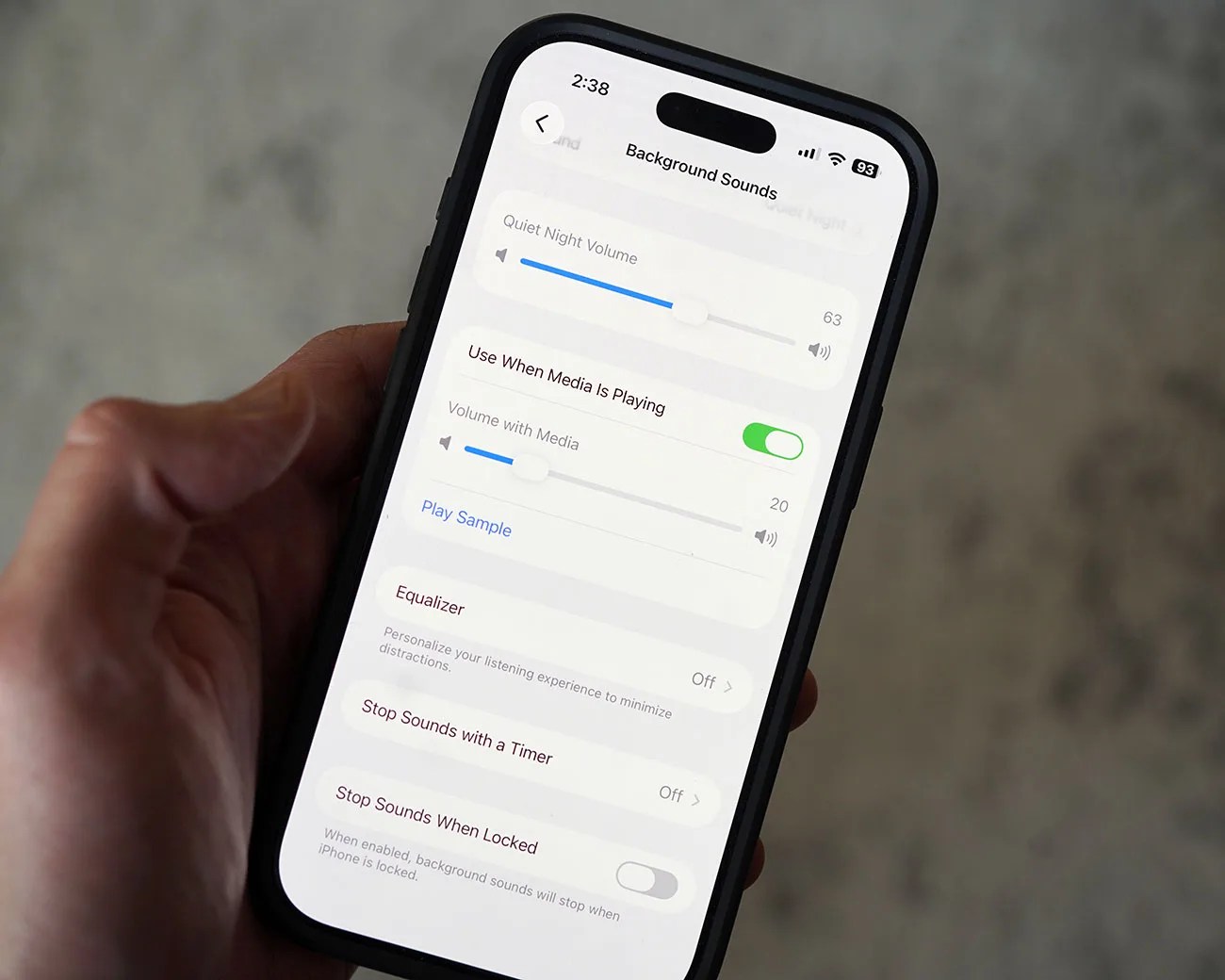
Smartphone screen showing Background Sounds settings with volume sliders and toggles for media and lock options.
You can further customize Background Sounds through the Settings app.
Photo by Tucker Bowe for Gear Patrol

You don’t need a subscription to any streaming service to access these Background Sounds. And there are no ads or time limit — although you can set them up to stop with a timer, as you can customize Background Sounds further via Settings.

  1. Open the Settings app.
  2. Select Accessibility.
  3. Select Audio & Visual (in the Hearing Section).
  4. Select Background Sounds.

In addition to iPhone, Background Sounds is available on iPad, Mac and Vision Pro. To learn more about Background Sounds, check out Apple’s Support page, here.

Want to stay up to date on the latest product news and releases? Add Gear Patrol as a preferred source to ensure our independent journalism makes it to the top of your Google search results.

add as a preferred source on google