4 Cool New Features Coming to Your iPhone’s Lock Screen

The next big software update, iOS 27, will roll out to your iPhone in about a month.

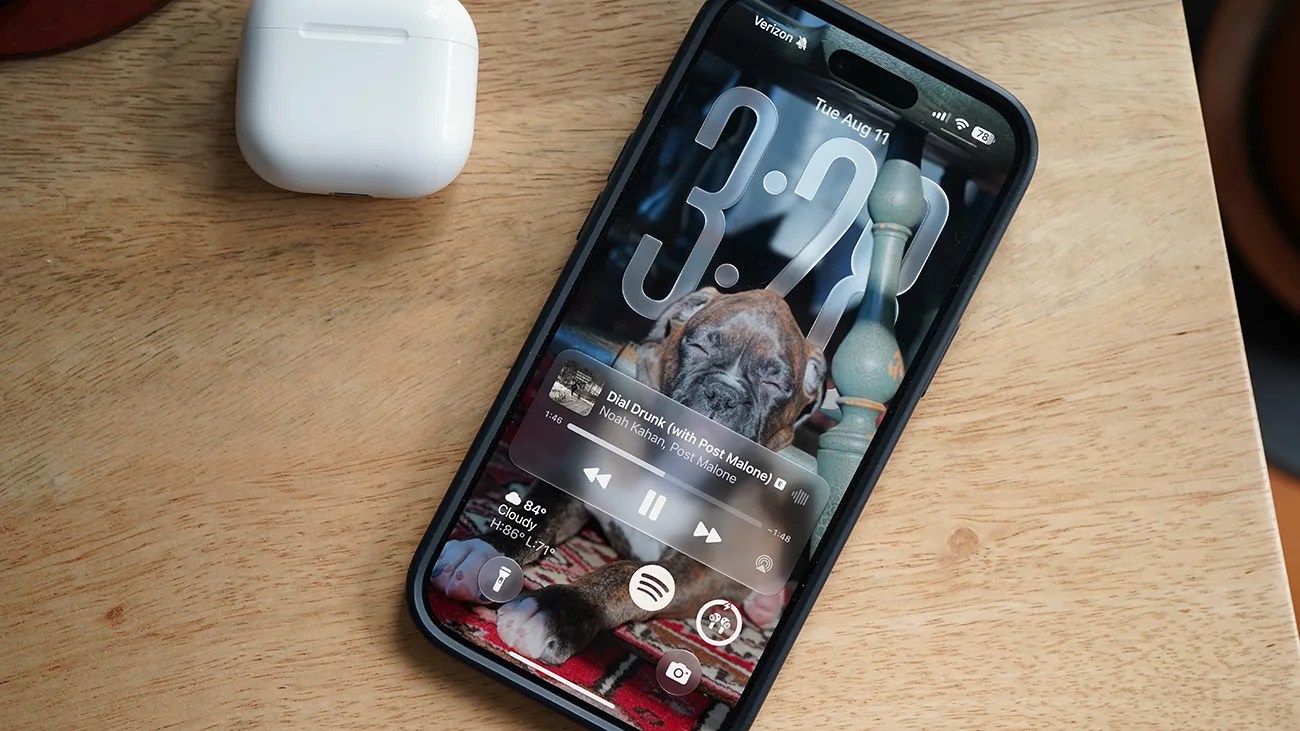
Smartphone with a black case displaying a music player screen and a puppy wallpaper, next to a white wireless earbud case on a wooden surface.Photo by Tucker Bowe for Gear Patrol

You interact with your iPhone’s Lock Screen maybe more than any other screen. It’s where you check the time, see notifications, quick-check widgets and, of course, unlock your iPhone.

Now, when iOS 27 is released sometime in September, Apple will introduce a number of new features to your iPhone’s Lock Screen.

1. Shrink the clock
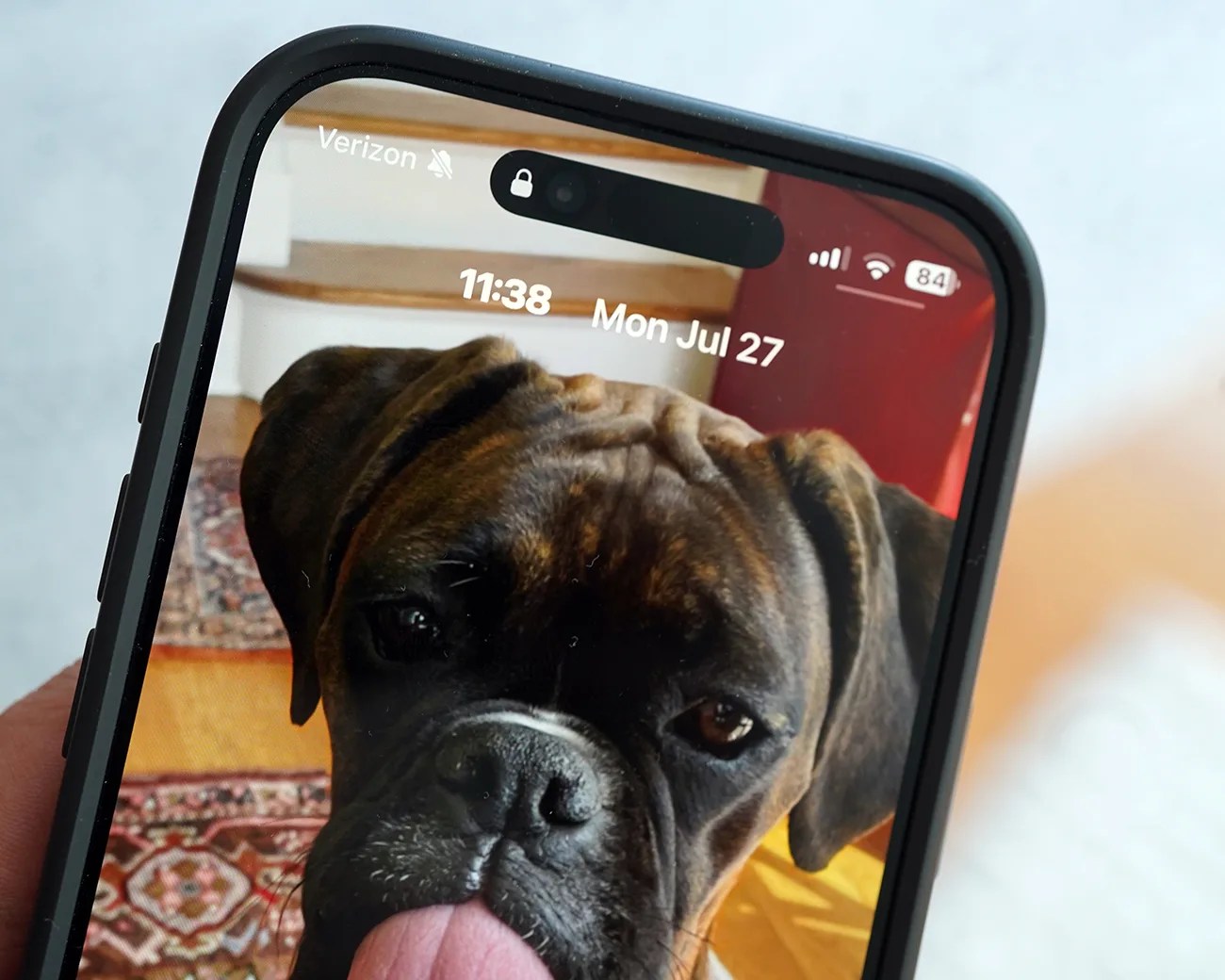
Close-up of a smartphone screen showing a brindle dog with its tongue out as the wallpaper.
Don’t want a large clock on your Lock Screen, you now have the option to shrink it.
Photo by Tucker Bowe for Gear Patrol

For the first time, you can shrink the size of the clock on the Lock Screen. Instead of it being massive, iOS 27 allows you to make it so it’s the same size as the date.

To shrink the size of the clock:

  1. Unlock your iPhone and long press on the Lock Screen.
  2. Tap the Customize button when it appears.
  3. Tap the clock widget.
  4. Select the new icon in the top right corner.

Clicking this new icon toggles the clock’s size between big and small. By making it smaller, it frees up more real estate to better show off the photo you have selected as your Lock Screen’s wallpaper.
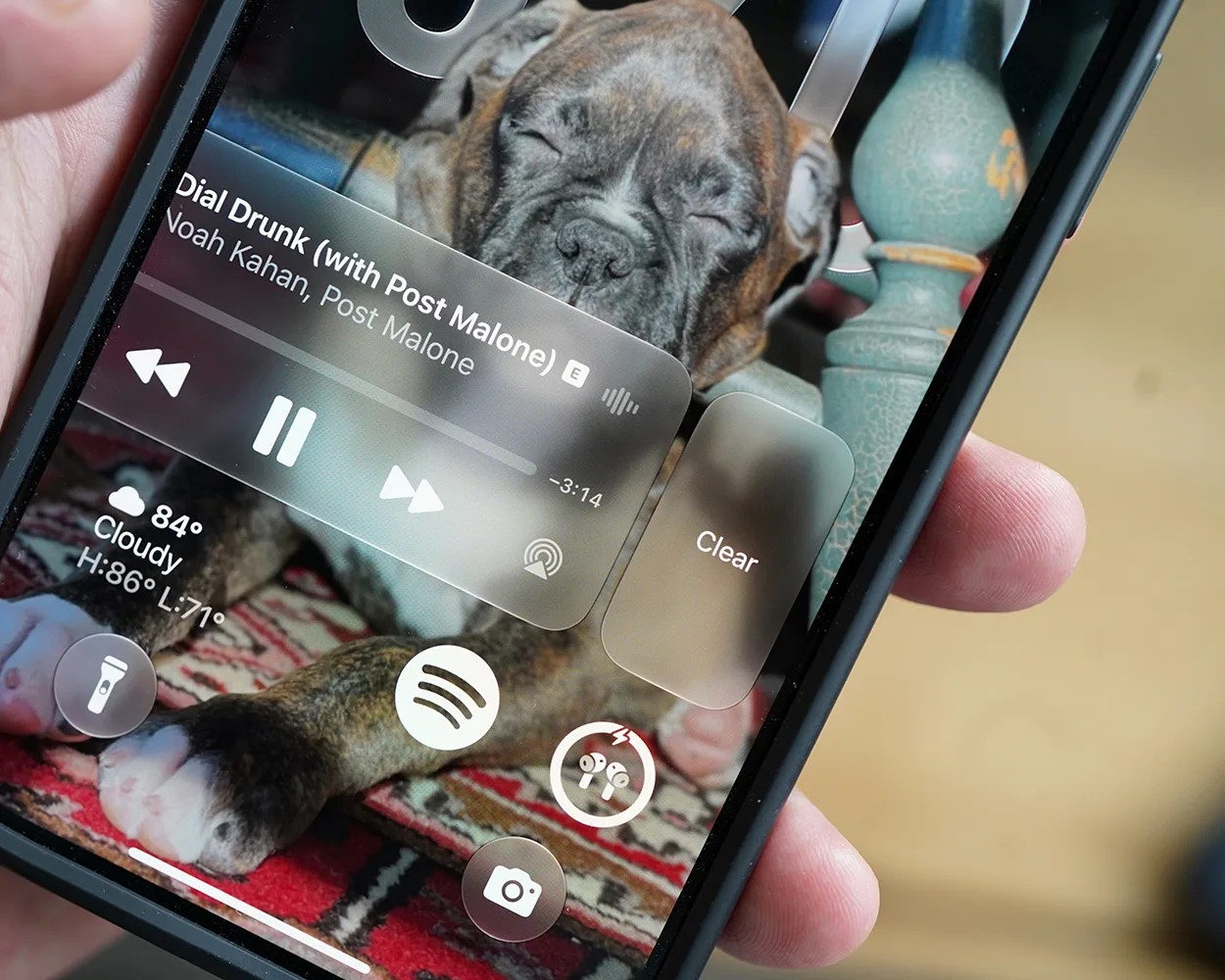
2. Swipe away the Now Playing widget

Smartphone screen showing music player with song "Drunk (with Post Malone)" by Noah Kahan, weather info, and a background image of a sleeping brindle puppy on a patterned rug.
You can swipe away the Now Playing widget … and your music won’t stop.
Photo by Tucker Bowe for Gear Patrol

When playing music on your iPhone, a Now Playing widget appears on your Lock Screen. To date, you’ve not been able to remove this widget without stopping the music.

Thanks to iOS 27, you can now swipe away this Now Playing widget the same way you can with other Lock Screen notifications: swipe left on the widget and hit Clear.

When Clear is selected, the widget will be removed and your music will continue playing.

3. Extend wallpapers

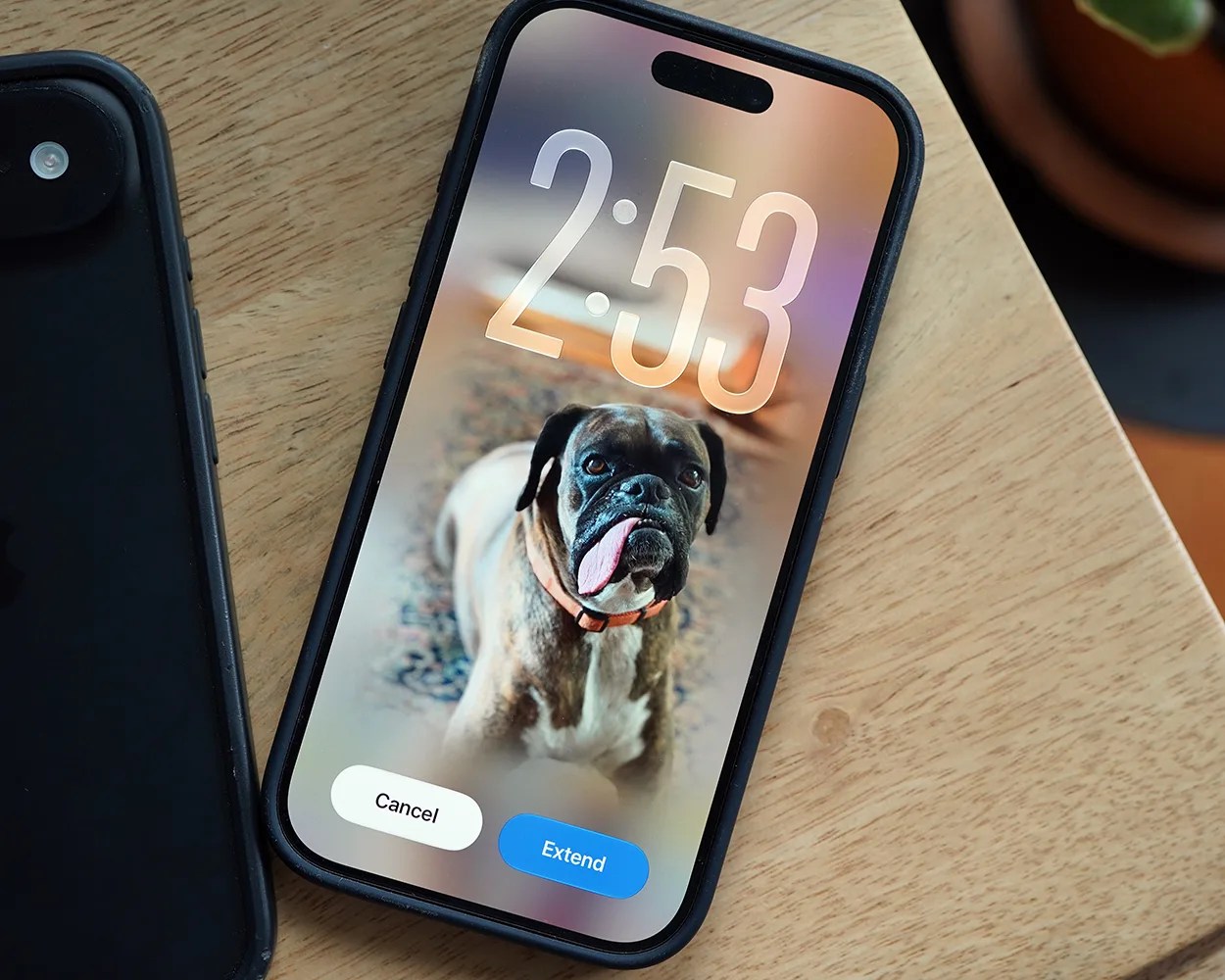
Smartphone with a black case on a wooden surface displaying a lock screen with a boxer dog wallpaper and options to cancel or extend.
For photos that don’t have the right aspect ratio to fill your Lock Screen, you can use Apple Intelligence to extend them.
Photo by Tucker Bowe for Gear Patrol

By now, there’s a good chance you have an iPhone that supports Apple Intelligence (this includes all iPhones released in the last two years). For those that do, iOS 27 introduces a neat photo trick that leverages AI to extend the borders of a photo so that it better fills your screen.

  1. Open the Photos app.
  2. Select a photo you want to use as a wallpaper.
  3. Tap the share button in the bottom-left corner.
  4. Select Use as Wallpaper.
  5. Tap the ellipsis (three dots).
  6. Select Extend Wallpaper.
  7. Tap Extend.
  8. Tap Add.

Once Apple Intelligence is done working its magic, you can then select this extended wallpaper for your Lock Screen.

4. Create AI generated wallpapers

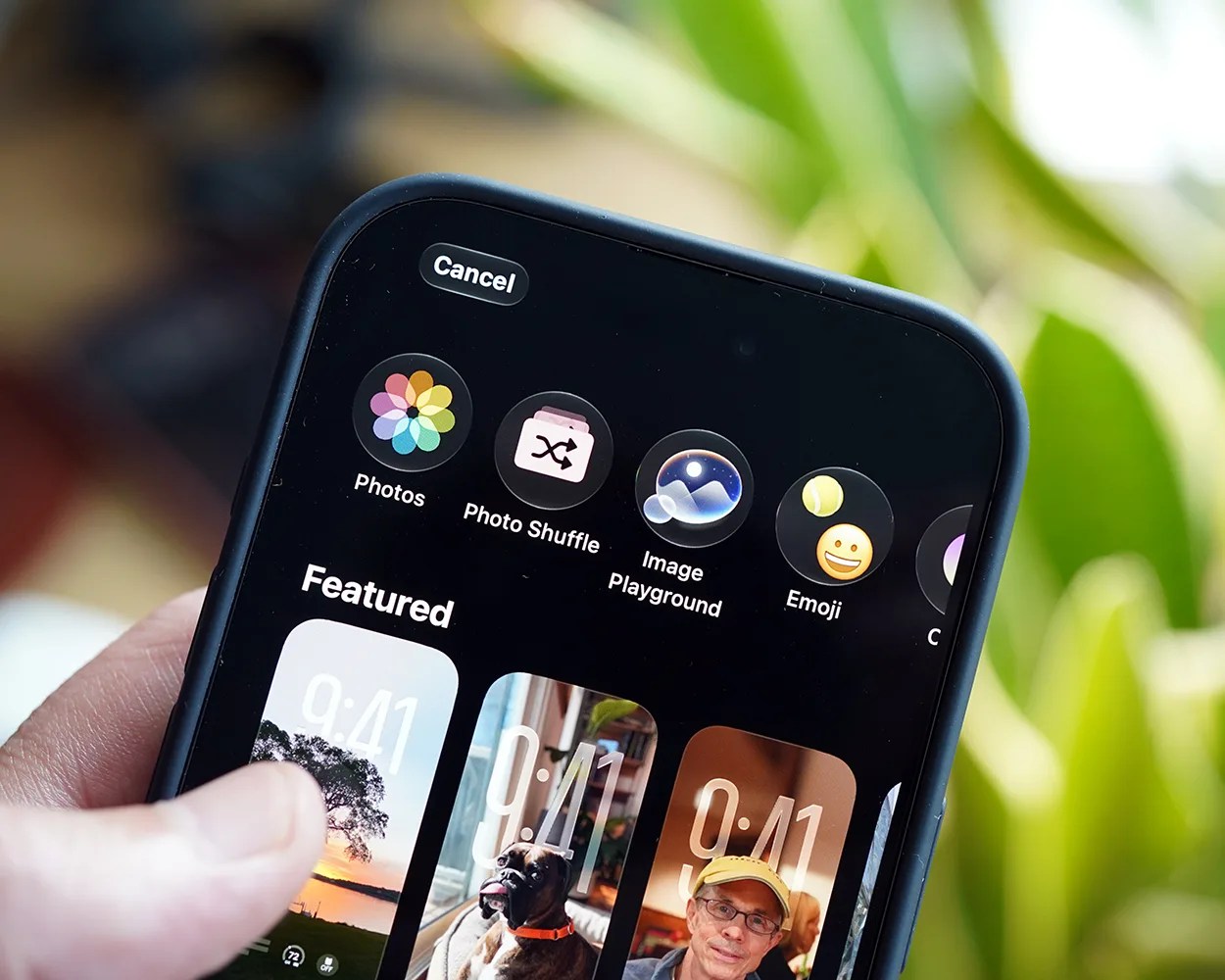
Close-up of a hand holding a smartphone displaying wallpaper customization options with icons for Photos, Photo Shuffle, Image Playground, and Emoji.
Image Playground is now accessible directly from the Lock Screen customization options.
Photo by Tucker Bowe for Gear Patrol

Also for iPhones that support Apple Intelligence, iOS 27 brings access to Image Playground directly to the Lock Screen and allows you to use it create AI-generation wallpapers specifically for the Lock Screen.

  1. Tap and hold anywhere on the Lock Screen.
  2. Select the + icon.
  3. Tap the Image Playground app in the upper row.

From here, you can describe what kind of AI-generated wallpaper you want Image Playground to create for your Lock Screen.

iOS 27 will be available this September. The public beta is out now.

Want to stay up to date on the latest product news and releases? Add Gear Patrol as a preferred source to ensure our independent journalism makes it to the top of your Google search results.

add as a preferred source on google
, ,