
Your iPhone Just Got a Small But Surprisingly Useful New Feature

Don’t like your iPhone’s Liquid Glass makeover? Apple finally rolled out a useful fix.

Close-up of a copper-colored smartphone camera module with three lenses and a flash, partially covered by teal fabric.Photo by Tucker Bowe for Gear Patrol

When Apple rolled out iOS 26 earlier this fall, it delivered a stunning “Liquid Glass” design to your current iPhone. Basically, it brought a transparent visual effect — like you were looking through a shard of glass — to various apps, navigation bars, folders and docks.

While undoubtedly cool, this Liquid Glass makeover also drew a lot of criticism because it affected the legibility of many apps and menus — the see-through effect blurred the foreground and background, which, in many instances, just looked messy and confusing.

The good news is that, thanks to iOS 26.1 — which just recently rolled out — Apple is making its Liquid Glass design more customizable (and usable) than before.
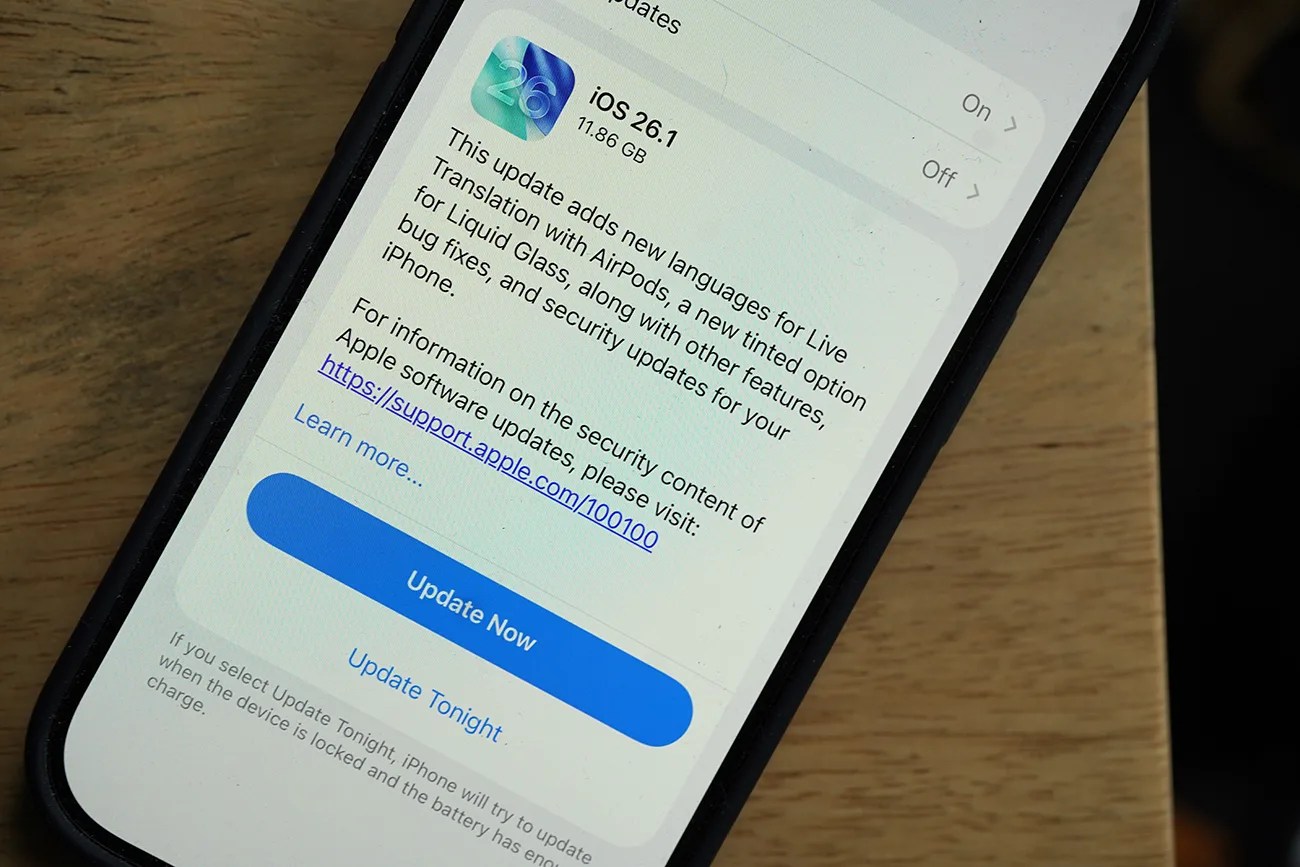
Smartphone screen showing iOS 26.1 update details with an "Update Now" button on a wooden surface.
In iOS 26.1, you can “tint” Liquid Glass to make your iPhone easier to read.
Photo by Tucker Bowe for Gear Patrol

A tinted Liquid Glass

Prior to the most recent software patch, iPhone users who weren’t completely happy with the Liquid Glass redesign had to face a tough reality: you couldn’t turn it off. The only option was to go through Settings, Accessibility and toggle on “Reduce Transparency.”

With iOS 26.1, you still can’t completely turn it off, but there is a new “Liquid Glass” setting that lets you essentially disable it for specific elements on your iPhone’s screen, most notably the Notification Center and certain search bars.
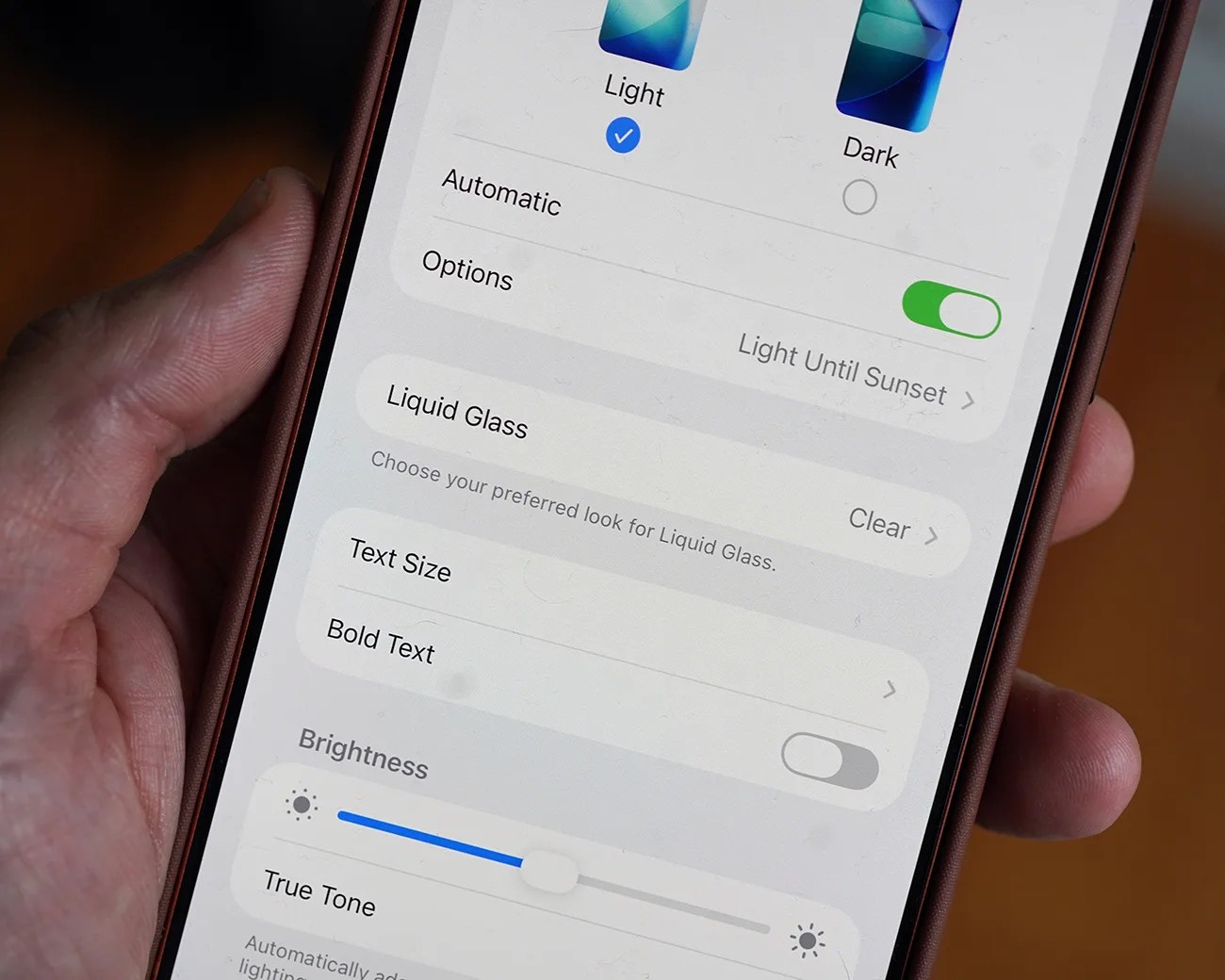
Smartphone screen showing display settings with Light mode selected, Liquid Glass option, and brightness slider.
You can find the new option via the Display & Brightness option in the Settings app.
Photo by Tucker Bowe for Gear Patrol

Once your iPhone is running iOS 26.1, go to:

  1. Open Settings.
  2. Select Display & Brightness.
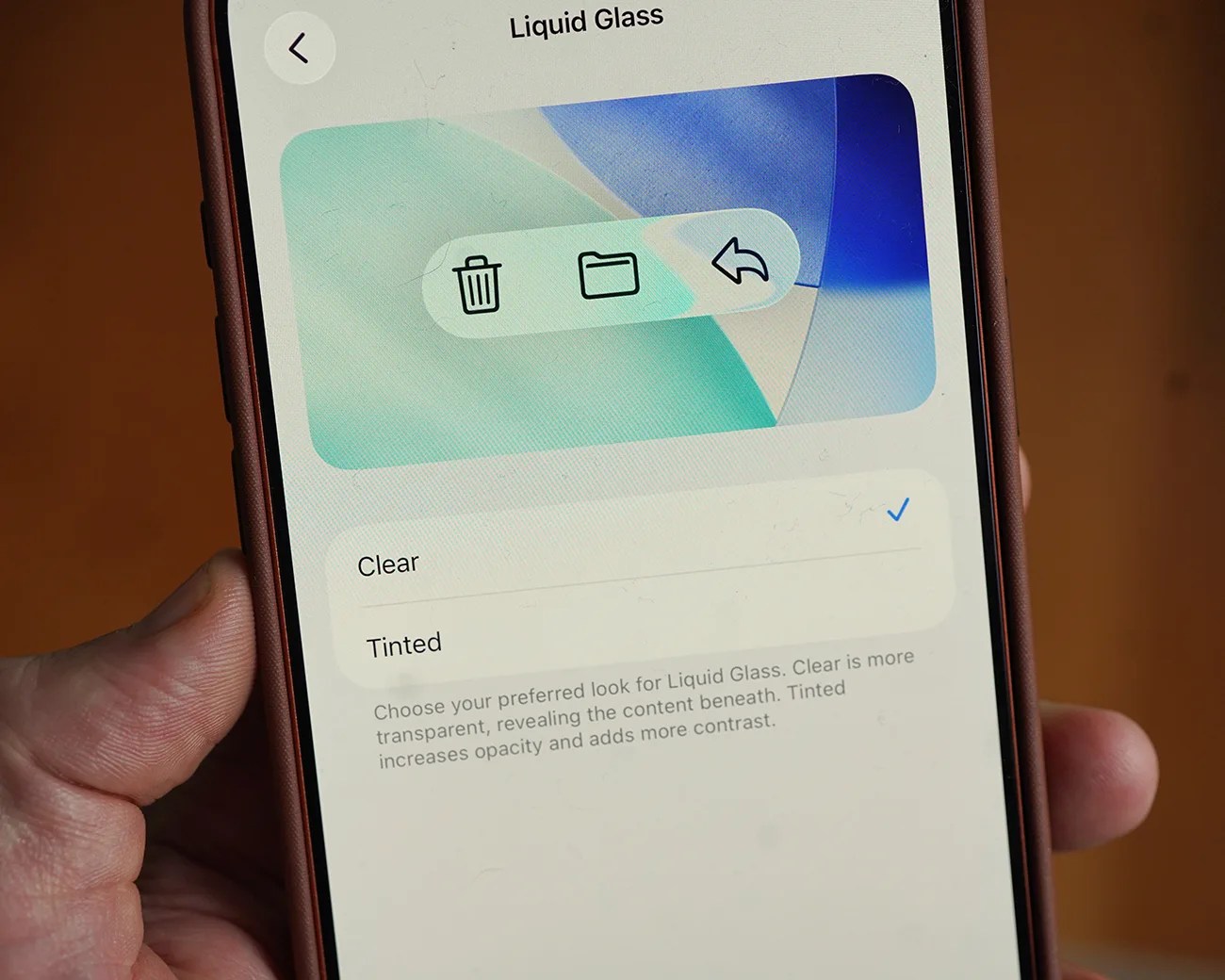
  3. Select Liquid Glass.
  4. Select Tinted.

By default, the Liquid Glass setting that is selected is “Clear,” which basically has it on full blast. If you select “Tinted” instead, it makes the backgrounds of various menus (including the Notification Center) more blurred, making them easier to read.

Smartphone screen showing "Liquid Glass" settings with options for Clear and Tinted, Clear selected.
According to Apple, the Tinted option “increases opacity and adds more contrast.”
Photo by Tucker Bowe for Gear Patrol

It’s a small change, admittedly, but it should be a welcome one for those iPhone users who’ve been struggling with Liquid Glass for the last several weeks.

Your iPhone must be running iOS 26.1 to find this new Liquid Glass setting. You can update the software via Settings > General > Software Update.

This means you’ll need an iPhone 11 or an iPhone SE (2nd generation) or newer.

Want to stay up to date on the latest product news and releases? Add Gear Patrol as a preferred source to ensure our independent journalism makes it to the top of your Google search results.

add as a preferred source on google